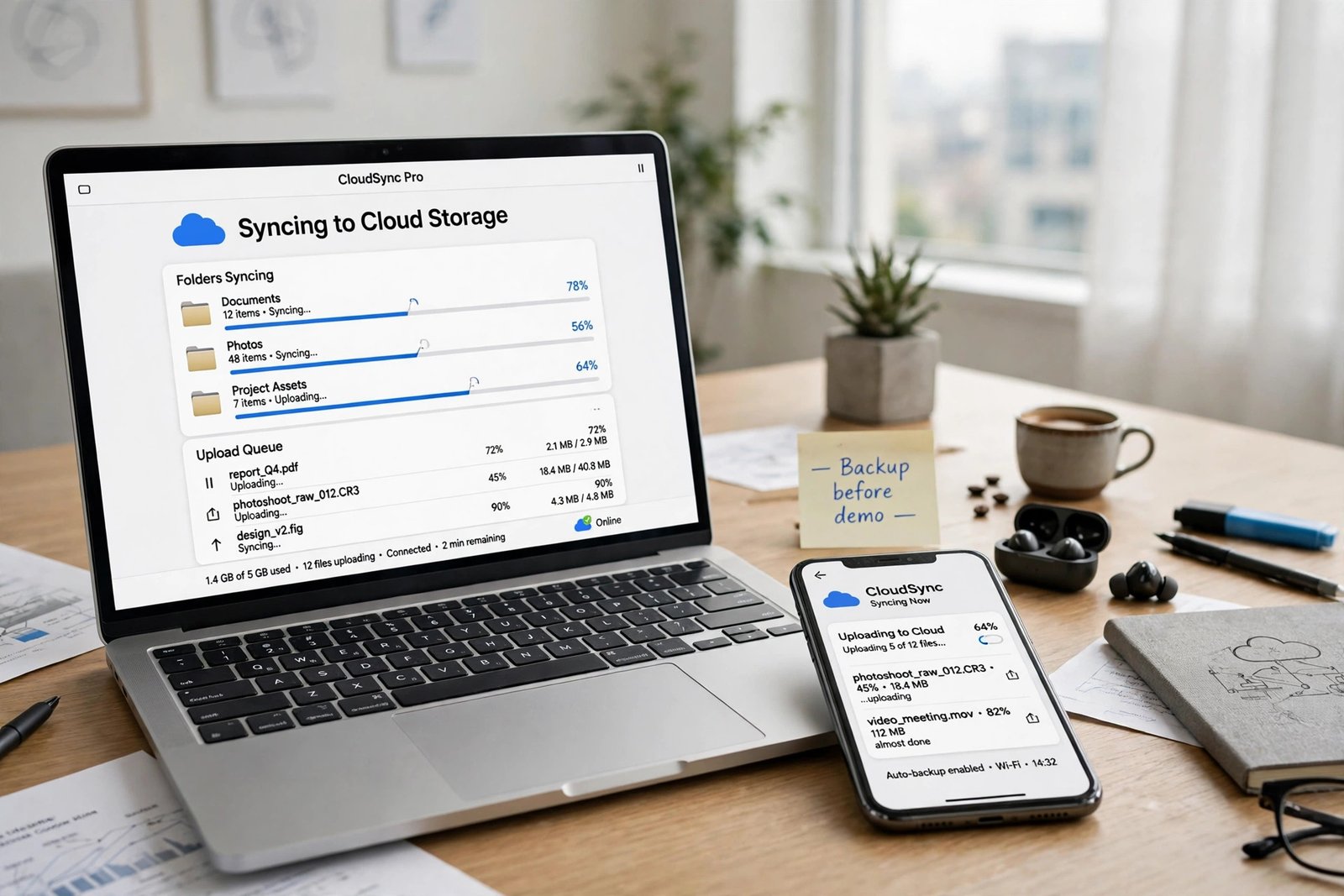
Choosing the best cloud storage in 2026 is less about picking the biggest name and more about matching a service to the way you actually work. Google Drive, OneDrive and Dropbox all store your files online, sync them between devices and let you share them with other people, yet they feel very different in daily use. One is built around Google Docs and Gmail, another is woven into Windows and Microsoft 365, and the third has spent years refining simple, reliable file sync. If you pick the wrong one, you end up paying for space you do not need, fighting with apps that do not fit your workflow, or moving years of files later when switching becomes painful.
This guide compares Google Drive, OneDrive and Dropbox honestly: their free tiers, storage, apps, sharing, collaboration, security and offline access. There is no single winner for everyone, so we finish with clear recommendations for students, families, freelancers, small teams and Windows or Mac users. By the end, you should know which service is the best cloud storage for you, and which one you can safely ignore.
What Is Cloud Storage, and Why Does the Choice Matter?
Cloud storage keeps a copy of your files on a company’s servers and syncs them to your computer, phone and tablet. Change a document on your laptop, and the updated version appears on your phone. Lose your laptop, and your files are still recoverable from the cloud. That sounds simple, and the basic idea is the same across all three services, but the details matter: how much free space you get, how fast files upload, whether shared folders stay in sync, and how easily you can find a file six months later.
The choice also matters because cloud storage tends to lock you in gently. Your photos, documents and backups accumulate, your sharing links spread to friends and colleagues, and your other apps start to depend on one service. Switching later is possible, but it takes time and planning. Spending ten minutes choosing well now saves hours of moving files later.
Google Drive vs OneDrive vs Dropbox at a Glance
Google Drive is the storage behind Google Docs, Sheets, Slides and Gmail. If you already use a Google account, you already have Drive, and its 15 GB of free storage is shared across Drive, Gmail and Google Photos. That generous free tier is one of its biggest strengths, although photos and email can eat into it faster than many people expect.
OneDrive is Microsoft’s storage service, built into Windows 10 and Windows 11 and closely tied to Microsoft 365 apps such as Word, Excel and PowerPoint. Its free tier is smaller, at 5 GB, but for people who live in Office apps and use a Windows PC, the integration is hard to beat. Files open directly in the desktop apps, changes save automatically, and version history is built in.
Dropbox is the oldest of the three as a dedicated sync service, and it still feels like the most focused. Its free tier is the smallest, at 2 GB, which is its biggest weakness for new users. In return, you get fast, reliable sync, a clean interface and strong sharing controls. Dropbox does not try to be an office suite or an email service; it tries to be excellent at storing and syncing files, and for many people that focus shows.
Free Storage Compared
Free storage is where the three services differ most. Google Drive gives you 15 GB free, shared with Gmail and Google Photos. For a student or a light user who mainly stores documents and a modest number of photos, that can last a long time. The catch is that the shared pool means a full inbox or a large photo library reduces the space available for files.
OneDrive gives you 5 GB free. That is enough for documents, schoolwork and a small set of photos, but it fills up quickly if you back up a phone camera roll or store large videos. Microsoft’s free tier is best seen as a trial of the ecosystem rather than a long-term home for a large library.
Dropbox gives you 2 GB free. That is very little in 2026, and it is the main reason many people rule Dropbox out before trying it. You can earn a little extra space through referrals, but not enough to change the picture. Dropbox’s free plan works best if you use it for active project files rather than as your main photo or video archive. If free storage is your top priority, Google Drive is the best cloud storage choice.
Apps, Sync and Everyday Ease of Use
Google Drive
Google Drive works best in a browser and on mobile. Google Docs, Sheets and Slides open instantly, collaboration is smooth, and comments and suggestions feel natural. The desktop app can mirror files or stream them on demand, which saves local disk space. Search is a genuine strength: Google’s search finds files by name, content and even text inside scanned documents and images. The downside is that Drive can feel like several products stitched together, and its desktop app takes a little learning at first.
OneDrive
OneDrive is the most invisible of the three on Windows. It is already there, your Documents and Desktop folders can back up to it, and Files On-Demand keeps files visible without downloading them until you open them. That integration is genuinely useful, especially on laptops with limited storage. On the web, OneDrive is clean and fast, and Office files open in the free web versions of Word and Excel. On a Mac or a phone, OneDrive is still solid, but it loses some of its home advantage.
Dropbox
Dropbox’s sync is its calling card. It is fast, it handles large folders well, and its Smart Sync feature keeps files visible on your computer without using local space. The desktop app is light and predictable, and the web interface is simple enough that a new user can share a folder in seconds. Dropbox also has useful extras such as file requests, which let other people send you files without needing a Dropbox account. What Dropbox lacks is a built-in office suite, so your work will open in Google or Microsoft apps instead.
Sharing and Collaboration
All three services let you share a file or folder with a link, set permissions, and stop sharing later. Google Drive is the strongest for real-time collaboration: several people can edit the same document, leave comments, and see changes live. That is why it is so popular in schools and small teams. Its sharing settings are powerful, though they can be confusing when a folder contains files owned by different people.
OneDrive sharing is excellent for Microsoft 365 users. You can share a Word or Excel file, co-author it in real time, and control whether people can edit or only view. Sharing with people outside your organisation works, but it is smoother when everyone is in the Microsoft ecosystem. Dropbox sharing is simple and reliable: shared folders sync to each member’s computer, links can have expiry dates on paid plans, and you can see who has viewed or edited a file. It is less built for live document editing, but for sharing project folders and large media, it is hard to fault.
Security and Privacy
All three services encrypt files in transit and at rest, offer two-factor authentication, and let you recover deleted files and earlier versions. That baseline is important: for most personal use, any of the three is far safer than keeping your only copy on a single laptop or USB drive. You can strengthen that further by turning on two-factor authentication and using a strong, unique password. Our guide on how to protect your online accounts explains the habits that make the biggest difference, whatever service you choose.
None of the three offers zero-knowledge, end-to-end encryption for all files by default, so if you store highly sensitive documents, consider encrypting them yourself before upload. Practical security matters more than the fine print for most people: turn on two-factor authentication, review which third-party apps have access to your account, and check your sharing links from time to time. A shared link you forgot about is a bigger risk than the encryption algorithm a provider uses.
Which Is the Best Cloud Storage for You?
Choose Google Drive if…
You use Gmail and Google Docs, you want the most free storage, you collaborate on documents often, or you want strong search and photo features. It is the best all-rounder for students, families and anyone already living in Google’s apps.
Choose OneDrive if…
You use Windows and Microsoft 365, you work in Word, Excel and PowerPoint every day, or you want your Desktop and Documents folders backed up with almost no setup. It is the natural choice for Windows-first households and offices.
Choose Dropbox if…
You value fast, reliable sync above all else, you share large folders with clients or collaborators, or you want a simple service that does one job well. It is a strong pick for freelancers, designers and small teams who move files constantly. If you decide to move, do it one folder at a time, check that files open correctly before deleting the originals, and keep the old service for a month as a safety net.
Frequently Asked Questions
Is Google Drive really free?
Yes, Google Drive is free up to 15 GB, shared across Drive, Gmail and Google Photos. You only pay if you need more storage, and you can keep using the free tier for as long as it fits your files.
Is OneDrive safe to use?
Yes, OneDrive encrypts your files, supports two-factor authentication, and keeps deleted files and earlier versions for recovery. As with any cloud service, your account security depends on a strong password and two-factor authentication.
Why is Dropbox free storage so small?
Dropbox offers 2 GB free because it focuses on paid plans and on sync quality rather than competing on free space. It is best for active project files, while Google Drive is a better free home for a large archive.
Can I use more than one cloud storage service?
Yes, many people do. For example, you might use Google Drive for documents and photos and Dropbox for client projects. Just keep a clear rule about what lives where, or you will waste time searching in the wrong place.
The best cloud storage in 2026 is the one that fits the apps you already use, the devices you own, and the way you share files. Google Drive wins on free space and collaboration, OneDrive wins on Windows and Office integration, and Dropbox wins on simple, fast sync. Pick the one that matches your daily work, turn on two-factor authentication, and back up anything irreplaceable in a second place. Your files will be safer, easier to find, and ready on every device you own.
3 thoughts on “Google Drive vs OneDrive vs Dropbox: Which Cloud Storage Is Best in 2026?”