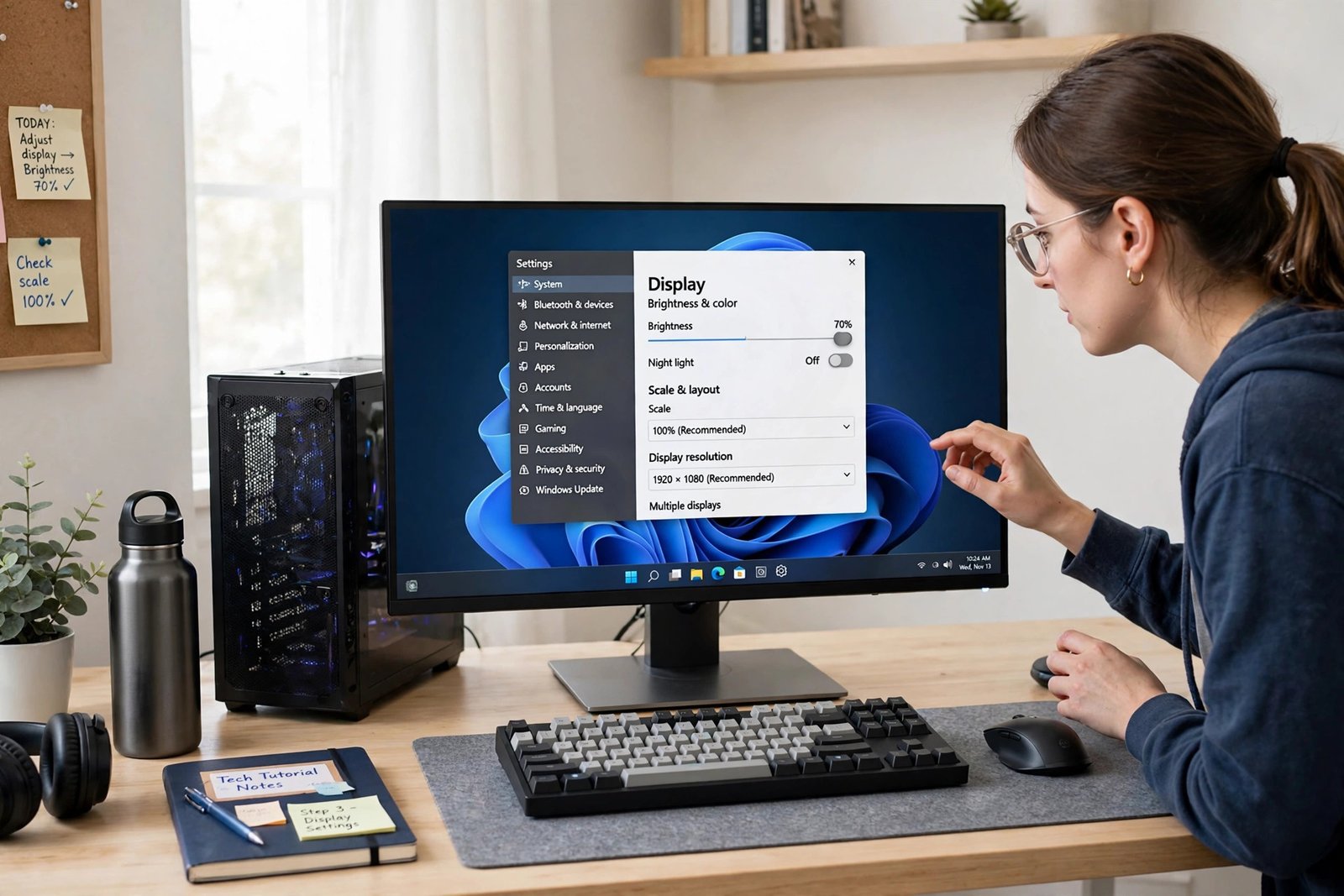
Windows 11 has a habit of filling up its drive quietly. Updates, temporary files, old downloads, a growing Recycle Bin and apps you forgot you installed all add up, until one day you get the warning: your disk is almost full. A full drive does more than stop you saving files — it can slow Windows down, stop updates installing, and make your computer feel sluggish.
The good news is that you can usually free up a large amount of space in under an hour, without deleting anything important and without buying a new drive. This 2026 guide shows you how to free up disk space on Windows 11 safely, step by step, starting with the built-in tools and moving on to the deeper clean-ups. Always back up anything important before you delete files, and if in doubt, leave a file alone.
First, See What Is Using Your Space
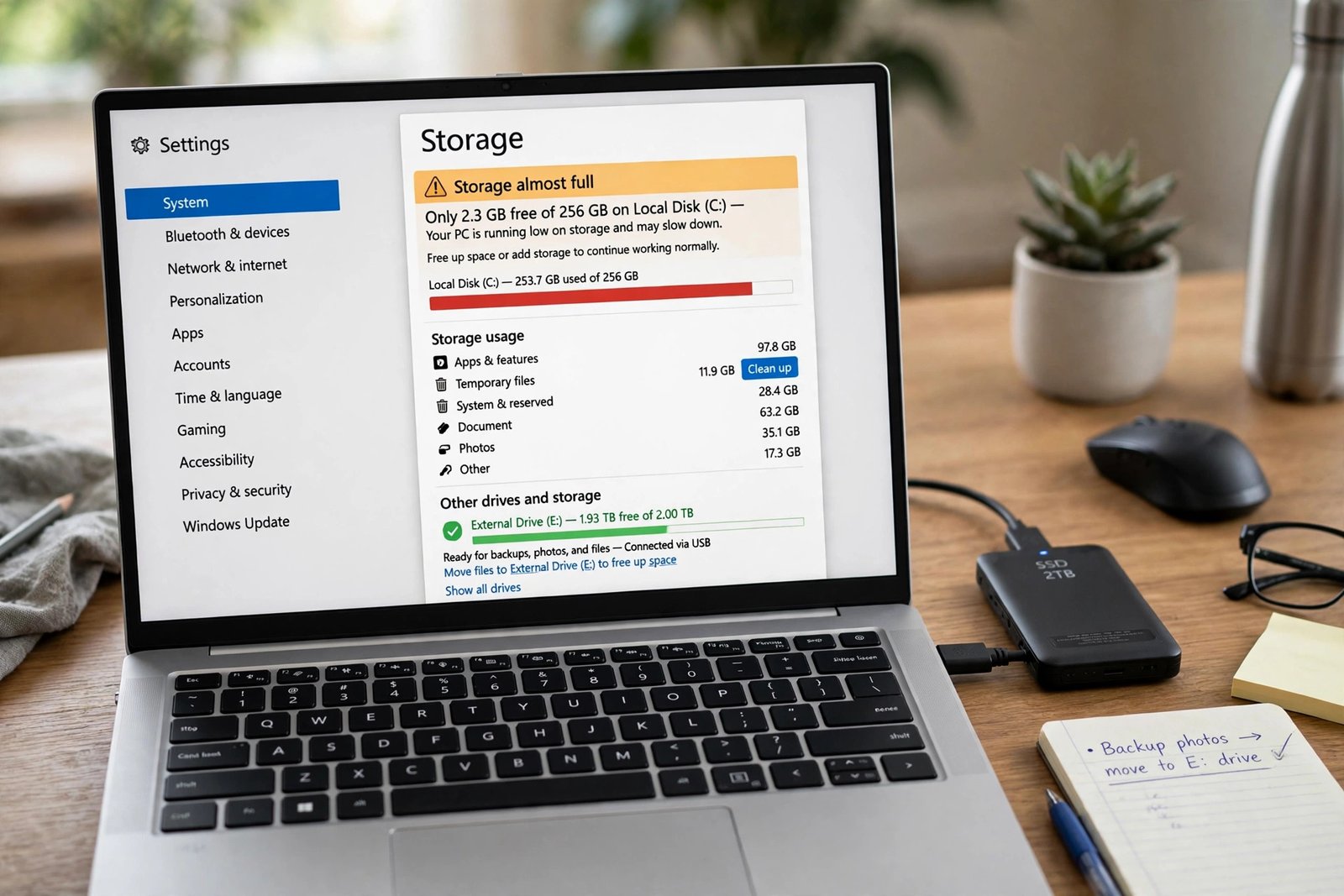
Before you delete anything, find out where your space has gone. Go to Settings, then System, then Storage, and Windows will show you a breakdown: apps, temporary files, documents, pictures and more. Click on each category to see the details. You may be surprised: a few large games, a video folder, or a huge cache can account for most of the problem. Knowing the culprit stops you deleting small files one by one when one large folder would solve it.
You can also sort a folder by size in File Explorer to find the biggest files quickly. Check your Downloads, Documents and Videos folders first, because that is where large files usually hide.
How to Free Up Disk Space on Windows 11: 10 Ways
1. Run Storage Sense
Storage Sense is Windows 11’s built-in clean-up tool. Go to Settings, System, Storage, and turn on Storage Sense, then click on it to choose what it cleans: temporary files, the Recycle Bin, and files in Downloads that you have not opened for a while. Set it to run automatically, and Windows will keep your drive tidy in the background without you thinking about it.
2. Delete temporary files safely
In the same Storage screen, click Temporary files. Windows will list the files it can safely remove: Windows Update clean-up, temporary internet files, thumbnails and more. Tick the boxes for the files you want to remove and click Remove files. Do not delete anything labelled as a system file unless Windows itself offers it in this list — this is the safe way to clean up, and it often frees several gigabytes at once.
3. Empty the Recycle Bin — properly
Deleting a file does not free space until you empty the Recycle Bin. Right-click the Recycle Bin on your desktop and choose Empty Recycle Bin, or open it and check what is inside first. If you have been deleting large videos or games, the Bin may be holding gigabytes you thought were gone. If you need to recover something, do it before you empty it.
4. Uninstall apps and games you do not use
Go to Settings, Apps, Installed apps, and sort by size. Large games and creative apps can take up tens of gigabytes each, and many people have several they have not opened in months. Uninstall the ones you do not use — you can always reinstall them later, and your saved data is often kept in the cloud or in a separate folder. This is one of the fastest ways to free up disk space on Windows 11, and it also makes your Start menu tidier.
5. Move large files to another drive or the cloud
If you have photos, videos or documents you want to keep but rarely open, move them to an external drive or to cloud storage instead of keeping them on your main drive. Our guide to the best cloud storage can help you choose a service, and a USB drive is a cheap option for a large photo or video archive. Keep a copy in two places for anything you cannot afford to lose.
6. Clean up Downloads and duplicate files
Downloads is where installers, PDFs and duplicate files collect. Sort it by date and size, delete old installers you no longer need, and move the files you want to keep into proper folders. Look for duplicates, too: the same video downloaded twice, or a photo saved in three places. Deleting duplicates is boring, but it can free a surprising amount of space.
7. Turn on OneDrive Files On-Demand
If you use OneDrive, Files On-Demand lets you see all your files in File Explorer without downloading them until you open them. That keeps your cloud files available without filling your drive. Right-click a folder in OneDrive and choose “Free up space” to remove the local copy while keeping it in the cloud. This is especially useful on laptops with a small SSD.
8. Reduce hibernation and restore points
Windows keeps a hibernation file and restore points that can take up several gigabytes. If you never use hibernation, you can turn it off from a Command Prompt with administrator rights. You can also reduce the space used by System Restore in System Properties, while keeping at least one recent restore point for safety. Do not turn System Restore off completely — it is your safety net if an update or a driver causes a problem.
9. Clear browser and app caches
Browsers, chat apps and creative apps store caches that grow over time. Clearing a browser cache is easy and safe, although you will need to sign in to some sites again. For other apps, check their settings for a cache or clear-data option. Do not use third-party “cleaner” apps that promise to speed up your PC — they often delete things you need and can cause more problems than they solve.
10. Consider a larger drive if you keep running out
If you free up space and fill it again within weeks, the honest answer may be that your drive is too small for what you do. A 256 GB drive fills quickly with modern games, video and photos. Upgrading to a larger SSD is the most effective long-term fix, and our guide to SSD vs HDD explains the difference, while our 15 Windows 11 tips and tricks to speed up your PC covers other ways to keep your computer running well.
What Not to Delete
Never delete files from the Windows folder, Program Files, or any folder you do not recognise, unless a trusted guide tells you to. Do not delete your only copy of a document, photo or project, and do not delete a backup. If you are unsure about a file, search for its name online or leave it alone — the space it takes up is not worth breaking Windows over.
Frequently Asked Questions
Why is my Windows 11 disk full?
Usually a mix of large apps and games, temporary and update files, a full Recycle Bin, and large files in Downloads, Documents or Videos. Check Settings, System, Storage to see the breakdown for your computer.
Is it safe to delete temporary files on Windows 11?
Yes, if you use the Temporary files screen in Settings. Windows only lists files it can safely remove. Do not delete system files by hand from the Windows folder.
How much free space should I keep on Windows 11?
Aim to keep at least 10 to 20 percent of your drive free, or at least 20 GB on a smaller drive. Windows needs free space for updates, temporary files and virtual memory, and performance drops when a drive is almost full.
Will freeing up disk space make my PC faster?
It can help, especially if your drive was almost full, because Windows can update and work properly again. If your PC is still slow after freeing space, the problem may be elsewhere — a slow drive, too little memory, or software running in the background.
Freeing up disk space on Windows 11 is mostly a matter of working through the list in order: check what is using the space, run Storage Sense, clear temporary files, empty the Recycle Bin, and uninstall what you do not use. Most people recover several gigabytes in the first half hour. Set Storage Sense to run automatically, move large files you rarely need to another drive or the cloud, and check your storage every few months — a little regular tidying is far easier than a panicked clean-up when the drive is full.