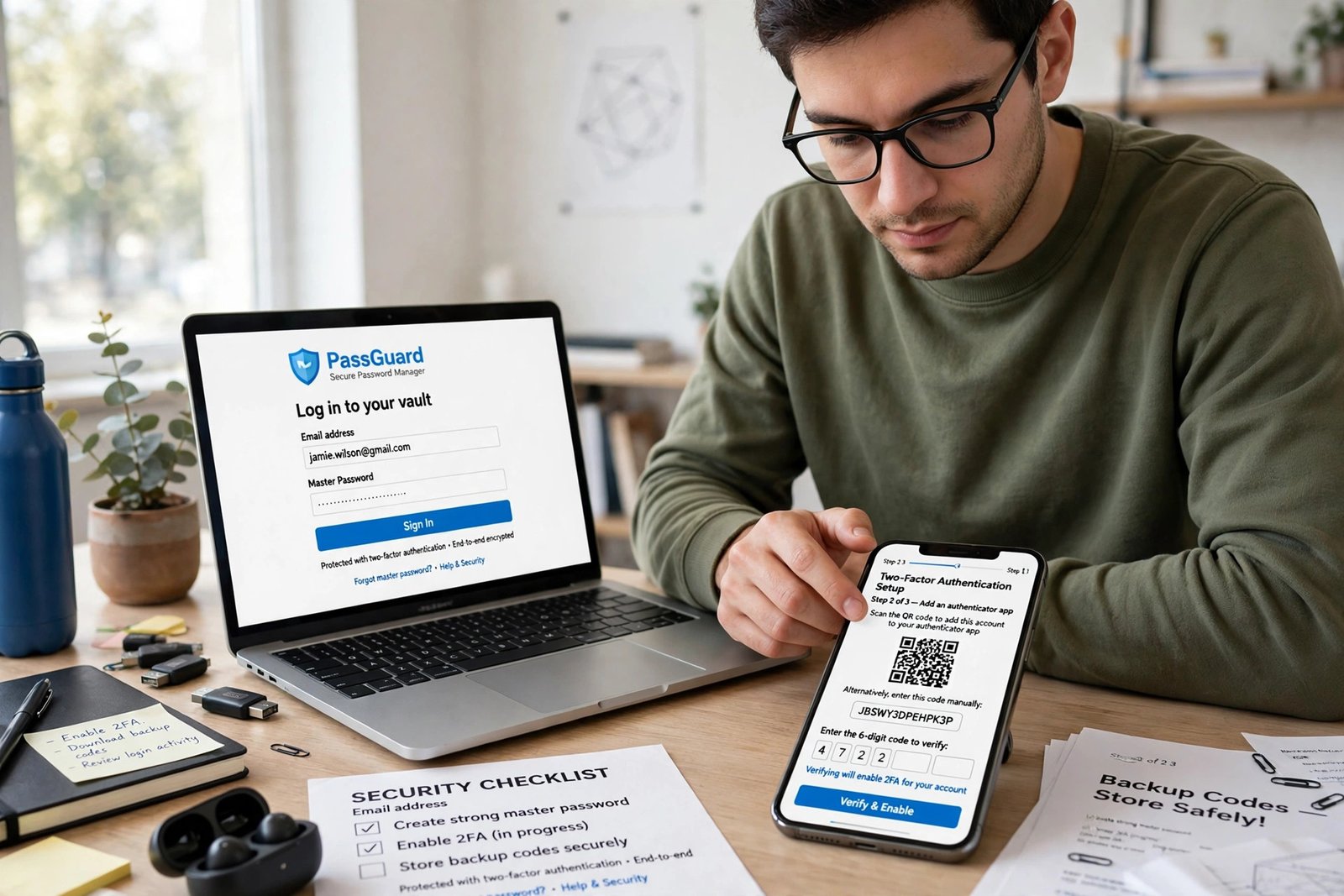
Most online accounts are not hacked by a genius breaking through a firewall. They are taken over because a password was reused, a fake email looked convincing, or two-factor authentication was switched off. Learning how to protect your online accounts is therefore less about technical skill and more about a few good habits, repeated every day. This beginner’s security guide explains those habits in plain language: strong passwords, password managers, two-factor authentication, phishing, and updates, with practical steps you can take today.
Start with your most important accounts: your email, your bank, and the accounts that can reset other accounts. If someone controls your email, they can often reset your other passwords, so protecting email first protects almost everything else. Work through this guide in order, and by the end you will have a much stronger setup than most people.
Why Accounts Get Hacked
Attackers usually take the easiest path. They try passwords leaked in earlier data breaches, send fake messages that trick you into logging in on a copy of a real site, or guess weak passwords such as a name and a birth year. They also target accounts with no second layer of protection, because those are the easiest to enter. You do not need to be famous or rich to be a target: automated tools try thousands of accounts at once, and any account with a weak password is a possible success.
Use Strong, Unique Passwords
Every account should have its own password, and each password should be long and hard to guess. A good password is at least 12 characters, with a mix of upper and lower case letters, numbers, and symbols, and it should not be a name, a date, or a common word. The easiest way to remember a strong password is to use a passphrase: three or four unrelated words, with a number and a symbol, such as “river-coffee-bridge-47!” That is much harder to guess than a short, familiar word, and easier to remember than a random string.
Never reuse a password across important accounts. If one site is breached and your password leaks, attackers will try the same password on your email, bank, and social media. Changing a reused password on your email and bank first is the single most valuable step in this guide.
Use a Password Manager
A password manager remembers your passwords for you, so you only need to remember one strong master password. It can generate long, random passwords for each site, fill them in when you log in, and warn you if you reuse a password. Well-known options include the built-in managers in your browser or operating system, and dedicated apps such as Bitwarden, 1Password, and Dashlane, many of which offer a free tier for personal use.
To start, install a password manager, create a strong master password, and add your most important accounts first. Then change those passwords to long, random ones generated by the manager. It takes an hour or two to move your main accounts over, but after that, logging in becomes easier and much safer. Keep your master password written down in a safe place at home, not on your phone or in an email.
Turn On Two-Factor Authentication (2FA)
Two-factor authentication, or 2FA, adds a second check after your password, usually a code from an authenticator app or a text message. Even if someone steals your password, they cannot log in without that code. Turn on 2FA for your email, bank, social media, and any account that offers it, starting with email. An authenticator app is safer than a text message, because texts can be intercepted, but a text code is still far better than no second factor at all.
When you turn on 2FA, save the backup or recovery codes the site gives you, and store them somewhere safe, such as a printed sheet at home. That way you can still get into your account if you lose your phone. Your phone is also the device that receives many 2FA codes, so keep it locked with a strong passcode and keep it updated. If you are choosing a new phone, our guide to the best budget smartphones under $300 covers models that handle security updates well.
Spot and Stop Phishing
Phishing is a fake message, email, or website that tries to trick you into giving away a password or a code. It often creates urgency: “your account will be closed,” “a parcel could not be delivered,” or “you have won a prize.” The message may look like it comes from your bank, a delivery company, or a well-known service, but the link leads to a fake login page.
To stay safe, never click a link in an unexpected message to log in. Instead, open the app or type the website address yourself. Check the sender’s address carefully, look for spelling mistakes and strange requests, and be suspicious of any message that asks for a password, a 2FA code, or payment details. No genuine bank or service will ask you to send them your password or your 2FA code. If you are unsure, contact the company through its official website or app, not by replying to the message.
Keep Your Devices and Apps Updated
Updates are not just about new features. They fix security holes that attackers can use to get into your devices and accounts. Turn on automatic updates for your phone, computer, and browser, and install updates promptly when they appear. Update your apps too, especially your browser, email app, and banking app. Remove apps you no longer use, because an old, forgotten app can still be a weak point.
Also check your privacy settings once in a while. Review which apps can access your location, photos, and contacts, and remove access you do not need. On shared or public computers, always log out, and never save passwords on a computer that is not yours.
Be Careful on Public Wi-Fi and With Backups
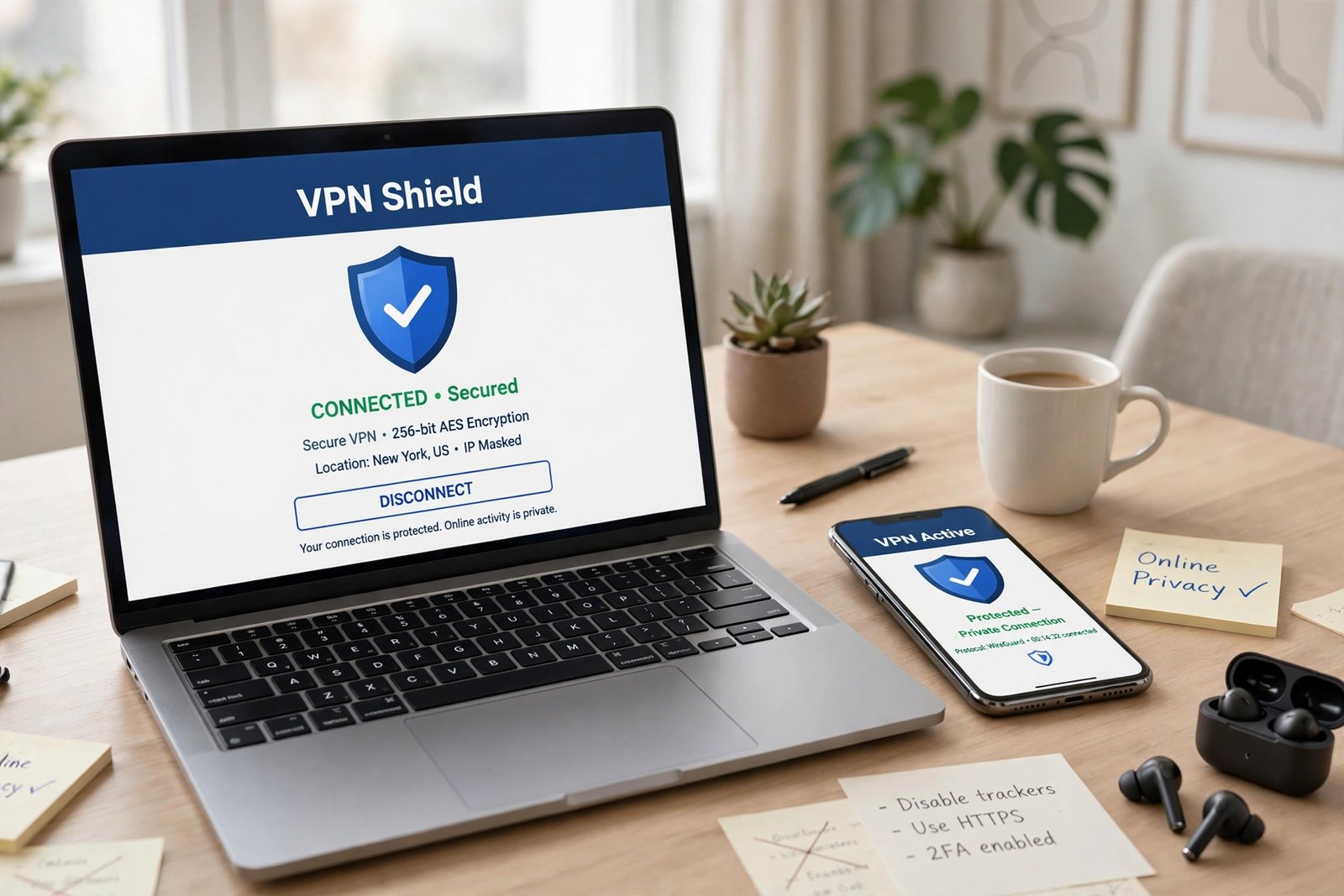
Public Wi-Fi in cafes, hotels, and airports is convenient, but it can be less safe than your home network. Avoid logging in to your bank or other sensitive accounts on public Wi-Fi if you can, and use a virtual private network, or VPN, from a reputable provider if you need to work on public networks often. At home, make sure your Wi-Fi uses a strong password and the latest security setting your router supports.
Finally, back up what matters. Keep a copy of important photos, documents, and contacts in a second place, such as a cloud service or an external drive. A backup will not stop an attack, but it makes recovery far less painful if an account is locked, a device is lost, or files are damaged. For more about how this site handles information, see our Privacy Policy.
What to Do If an Account Is Hacked
If you suspect an account has been taken over, act quickly. Change the password from a device you trust, turn on 2FA if it was off, and check the account’s recent activity and recovery settings for changes you did not make. Change the password on your email too, and check whether the same password was used anywhere else. If money is involved, contact your bank at once. Then tell the service through its official help pages, so it can secure the account and help you recover it.
Frequently Asked Questions
Is it safe to save passwords in my browser?
It is safer than reusing the same password everywhere, and modern browsers encrypt saved passwords. A dedicated password manager is usually a better choice, because it works across devices, generates stronger passwords, and warns you about reuse. Whichever you use, protect it with a strong master password and 2FA.
What is the best type of two-factor authentication?
An authenticator app or a security key is the safest option for most people. A code by text message is less secure, but still much better than no second factor. Choose the strongest method the service offers, and save your recovery codes in a safe place.
How can I tell if an email is a phishing attempt?
Look for urgency, unexpected attachments or links, spelling mistakes, and a sender address that does not match the real company. Never log in through a link in an unexpected email. Open the app or type the address yourself, and contact the company through its official channels if you are unsure.
How often should I change my passwords?
You do not need to change a strong, unique password on a regular schedule. Change it at once if the service reports a breach, if you reused it elsewhere, or if you suspect someone has seen it. Focus on making each password unique and turning on 2FA, rather than changing good passwords every month.
Protecting your online accounts does not require perfect security. It requires a few habits that close the easiest doors: a unique password for each account, a password manager to remember them, two-factor authentication on your most important accounts, and a pause before you click a link in an unexpected message. Set those up this week, starting with your email, and you will be far safer than you were yesterday.
2 thoughts on “How to Protect Your Online Accounts: A Beginner’s Security Guide (2026)”