A budget gaming PC build is the smartest way to get into PC gaming in 2026. Instead of paying a premium for a prebuilt machine or a console with expensive games, you pick each part yourself, spend money where it matters most, and end up with a computer that plays modern games well and can be upgraded later. This guide walks you through the whole process: how much to spend, which parts to buy, how to put them together, and the mistakes that cost beginners the most money. You do not need experience. If you can follow instructions and use a screwdriver, you can build a gaming PC.
How Much Does a Budget Gaming PC Cost in 2026?
Budget means different things to different people, so think in tiers rather than a single number. Around the $500–$700 tier, you can build a solid 1080p machine that runs esports titles like Fortnite, Valorant, and Rocket League beautifully and handles most modern games at medium settings. Around the $700–$900 tier, you get the sweet spot: smooth 1080p gaming at high settings, a faster processor, and enough storage that you are not constantly deleting games. Around the $900–$1,200 tier, you step into comfortable 1440p gaming, faster load times, and enough headroom to stream or record while you play. Prices shift with sales and new hardware launches, so watch for deals on the graphics card and processor first, since those two parts set your budget. Remember that the tower is only part of the cost: you may also need a monitor, keyboard, mouse, and a copy of Windows if you do not already have one.
The Parts You Need
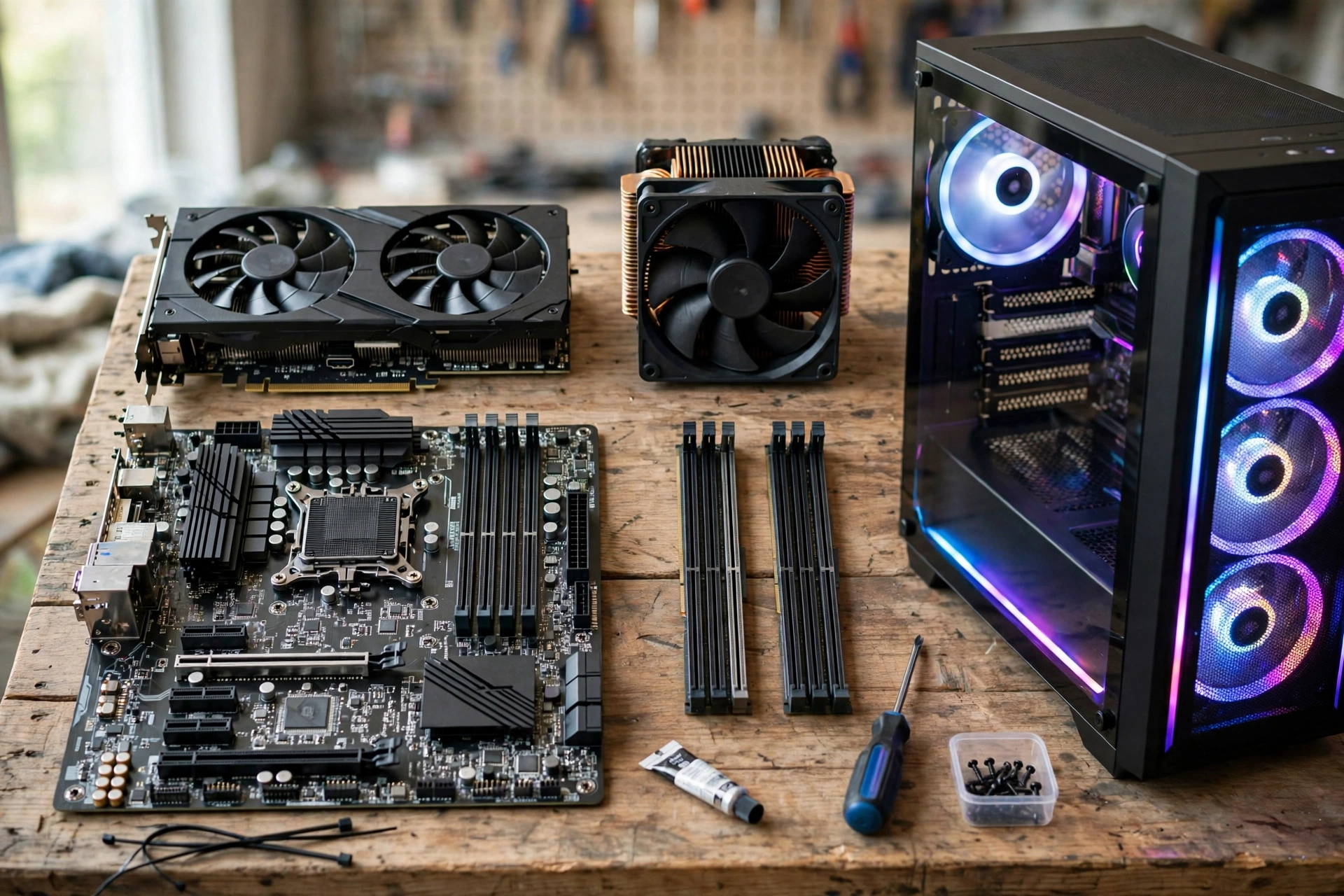
Every gaming PC is made of the same eight core parts. Here is what each one does and what to look for on a budget.
1. CPU (Processor)
The processor handles game logic, background tasks, and everything your computer does besides graphics. For a budget build, a modern six-core processor is the sweet spot: it is fast enough for any current game and leaves room for streaming or multitasking. Do not overspend here. In most games, the graphics card matters far more than the processor, so a mid-range CPU paired with a stronger GPU will always beat an expensive CPU paired with a weak GPU. Make sure the CPU matches your motherboard socket, which we cover below.
2. Graphics Card (GPU)
The graphics card is the single most important part of a gaming PC, and it should take the largest share of your budget, usually around 40 to 50 percent of the tower’s cost. It decides your resolution, frame rate, and graphics settings. For 1080p gaming, a current-generation mid-range card is plenty. For 1440p, step up one tier if your budget allows. Buy new if you can: used cards can be a bargain, but they may have been used hard for crypto mining, and they usually come without a warranty. If you do buy used, test it thoroughly and buy from a seller with a return policy.
3. Motherboard
The motherboard connects everything together. For a budget build, you do not need the most expensive board, but you do need the right one: the correct socket for your CPU, enough RAM slots, an M.2 slot for a fast SSD, and Wi-Fi built in if you cannot run an ethernet cable to your desk. Cheaper boards are fine as long as they support your processor and have the ports you need. Check the manufacturer’s website for BIOS compatibility before you buy, especially if you are pairing a newer CPU with an older board design.
4. Memory (RAM)
For gaming in 2026, 16 GB of RAM is the minimum you should buy, and it should be two 8 GB sticks, not one 16 GB stick. Two sticks run in dual-channel mode, which gives you a real performance boost for free. If your budget stretches, 32 GB is a smart investment: it helps with streaming, video editing, and future games that use more memory. Speed matters less than capacity on a budget, so do not pay a big premium for the fastest kit. Just make sure the RAM type matches your motherboard, because DDR4 and DDR5 are not interchangeable.
5. Storage (SSD)
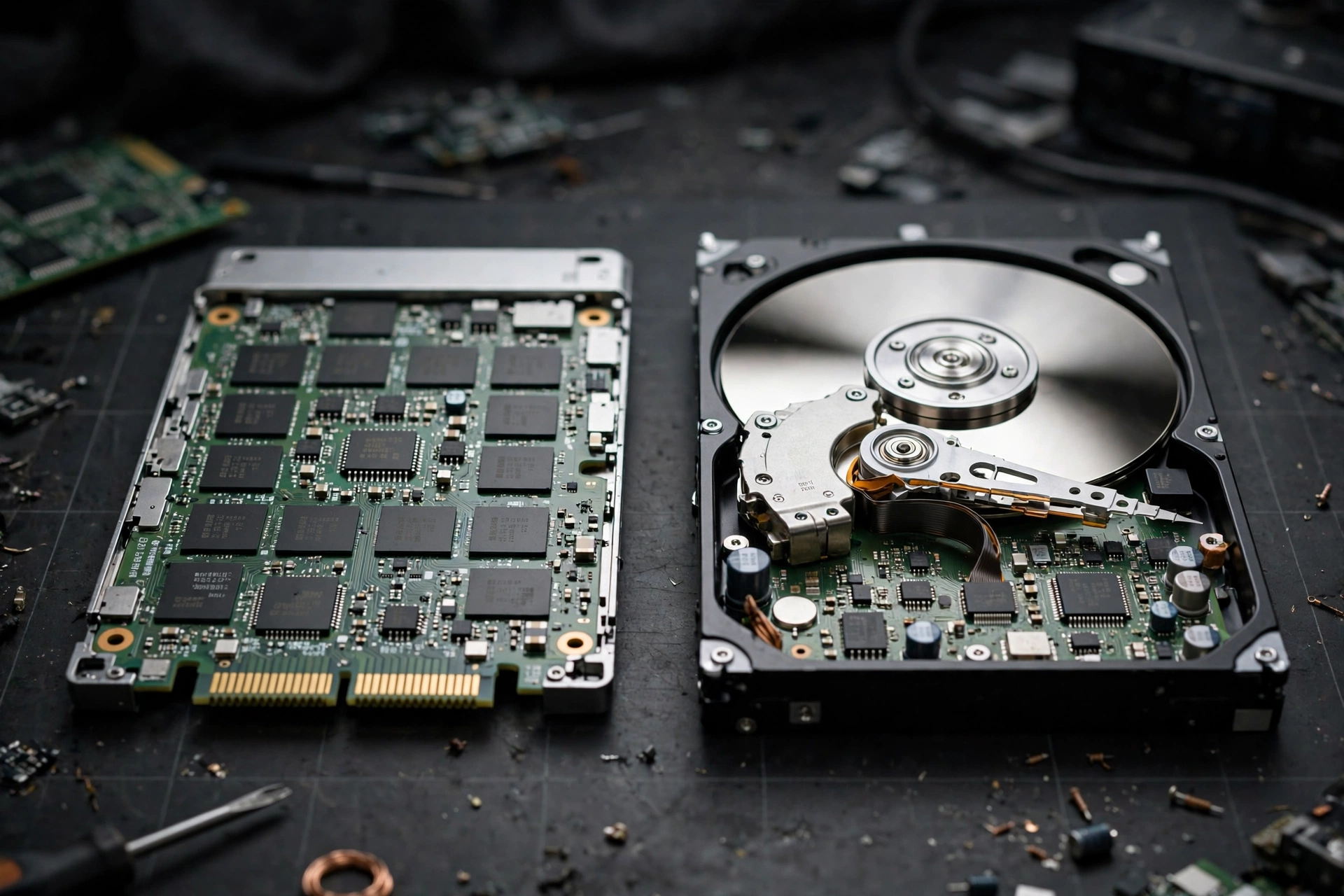
Every gaming PC in 2026 should boot from an NVMe SSD. Games load dramatically faster than on a hard drive, and Windows feels far more responsive. A 1 TB SSD is the sweet spot for a budget build: it holds Windows plus a healthy library of games without constant juggling. Avoid tiny 256 GB drives, because a few modern games will fill them. You can always add a second drive later, so start with one good 1 TB drive rather than a small SSD plus an old hard drive.
6. Power Supply (PSU)
The power supply is the part beginners cheap out on most, and it is the worst part to cheap out on. A bad PSU can damage your other components or fail without warning. Buy a unit from a reputable brand with an 80 Plus Bronze rating or better, and give yourself headroom above your system’s expected draw: a build that needs 400 watts is comfortable on a 550 or 650 watt unit. Check that it has the right connectors for your graphics card, especially the newer 12VHPWR connector some cards require. A good PSU lasts through several builds, so it is money well spent.
7. Case
The case holds everything and controls airflow, which directly affects temperatures and noise. You do not need an expensive case, but you do need one with a mesh front panel for airflow, room for your graphics card, and space for at least two or three fans. Good budget cases include fans pre-installed, which saves you money. Check the maximum GPU length and CPU cooler height before you buy, because a card that does not fit is a frustrating mistake. Tempered glass looks great, but airflow matters more than looks.
8. Cooling
Most budget processors include a stock cooler in the box, and for a mid-range CPU it is perfectly adequate. If you want a quieter system or plan to push your hardware, a budget tower air cooler is a cheap and effective upgrade. You do not need liquid cooling in a budget build: a good air cooler performs just as well, costs less, and has no pump to fail. Whatever you choose, make sure your case has enough fan slots to move air from front to back, and keep cables tidy so they do not block airflow.
Building Your PC, Step by Step
Set aside two to three unhurried hours and a clean table. Work on a hard surface, touch a metal part of the case regularly to discharge static, and keep your screws organized. First, install the CPU, RAM, and M.2 SSD onto the motherboard while it is still outside the case: it is much easier with room to work. Then mount the motherboard in the case, install the power supply, and connect the main power cables. Next, fit the graphics card into the top PCIe slot and connect its power cables. Add your fans, tidy the cables with zip ties, and double-check every connection. When you first power on, enter the BIOS to confirm all your parts are detected, then install Windows from a USB drive and download the latest drivers for your graphics card and motherboard. If the PC does not boot, do not panic: check that the RAM is fully seated, the power cables are clicked in, and the monitor is plugged into the graphics card, not the motherboard.
Compatibility Checks Before You Buy
Most first-build problems come from parts that do not fit together, so check these five things before you order. First, the CPU socket must match the motherboard. Second, the RAM type and speed must be supported by the board. Third, the graphics card must physically fit in the case, so compare the card’s length with the case’s maximum GPU clearance. Fourth, the power supply must have enough wattage and the right connectors for the card. Fifth, confirm that your motherboard’s BIOS supports your CPU, or that it can be updated without an older CPU. A free tool like PCPartPicker flags most of these conflicts automatically and is worth using before you spend a dollar. And once your PC is online, a stable connection matters as much as fast hardware, so take a look at how to secure your home Wi-Fi network before your first gaming session.
7 Mistakes That Waste Money
Beginners lose money on the same handful of errors. Avoid these and your budget will go much further.
- Overspending on the CPU. A flagship processor will not make games faster if the graphics card is weak. Spend on the GPU first.
- Buying a no-name power supply. A cheap, unbranded PSU can kill your whole system. Buy a known brand with a warranty.
- One stick of RAM. A single stick halves your memory bandwidth. Always buy RAM in pairs.
- A tiny SSD. A 256 GB drive fills up after two or three modern games. Start at 1 TB.
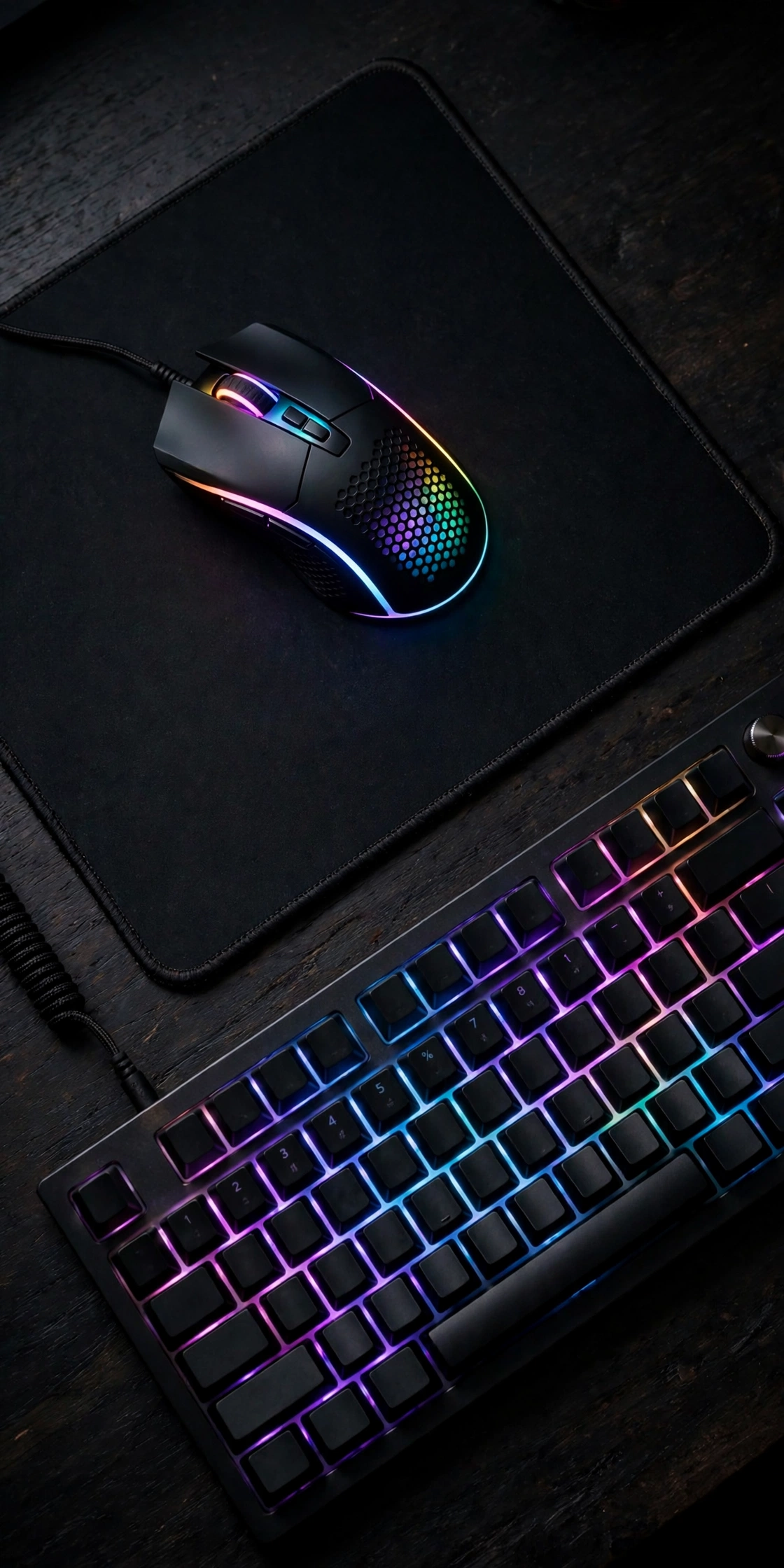
- Paying for looks over performance. RGB lighting and glass panels are fun, but they do not add frames per second.
- Buying everything at once at full price. Sales rotate constantly. Waiting a week or two for a deal on the GPU can save a real amount.
- Forgetting the extras. Budget for Windows, a monitor, and peripherals if you need them, so there are no surprises after the build.
Frequently Asked Questions
How long does it take to build a gaming PC?
For a first-time builder, plan on two to three hours for the physical build and another hour to install Windows and drivers. Take your time, follow a video guide for your first build, and do not rush the cable connections.
Is it cheaper to build a PC than to buy a prebuilt one?
Usually, yes. Building yourself typically saves money at the same performance level, and you get better parts, a cleaner build, and the ability to upgrade later. Prebuilt PCs charge for assembly, warranty, and support, which some people are happy to pay for.
Can a budget gaming PC run modern games?
Yes. A machine in the $700–$900 tier runs most modern games at 1080p on high settings, and esports titles at very high frame rates. You may need to lower a few settings in the most demanding games, but the experience is smooth and enjoyable.
Do I need Wi-Fi on my motherboard?
Only if you cannot run an ethernet cable to your desk. Ethernet is faster and more stable for gaming, but built-in Wi-Fi is convenient and worth the small premium if your router is in another room.
Can I upgrade a budget PC later?
That is one of the biggest advantages of building your own. You can add more RAM, a bigger SSD, or a faster graphics card later without replacing the whole machine. Choose a motherboard and power supply with some headroom now, and upgrades stay easy.
Final Thoughts
Building a budget gaming PC is one of the best tech projects you can take on: you save money, learn how your computer works, and end up with a machine you can upgrade for years. Spend the most on your graphics card, buy a power supply you can trust, and double-check compatibility before you order. Once it is built, your PC is also a capable creative workstation, and the best free AI tools can help you edit gameplay videos, design stream graphics, and write scripts for your channel. Take your time, enjoy the build, and welcome to PC gaming.