Buying the best laptops for students in 2026 means balancing three things: what you can afford, what your course actually needs, and how long the laptop has to last. A laptop that is perfect for essays and lectures may struggle with engineering software, and a powerful machine is wasted money if all you do is take notes. The good news is that every budget tier now has strong options, and the differences between them are clearer than they used to be. This guide breaks down what to buy for every budget — by tier and by use case — so you spend on what matters and skip what doesn’t.
What Matters Most in a Student Laptop
Before you look at models, decide what matters for your course. Battery life is the single most important spec for most students: a laptop that dies at 2pm is useless in a library without spare sockets, so aim for a full day of real use, not the manufacturer’s best-case number. Weight matters almost as much — a laptop you carry all day should be light enough to forget about. Then comes the keyboard and screen, because you will type and read on them for hours. Performance comes last for most students, because even modest modern laptops handle documents, browsing, and video calls easily. And don’t forget the software you’ll use: the best laptop is one that runs the tools you actually need, including AI assistants — our guide on how to use ChatGPT for work shows how students use AI for research, drafting, and revision.
The Budget Tier: Everyday Note-Taking and Browsing
If your course is mostly reading, writing, and research, you don’t need to spend much. Budget laptops in this tier handle word processing, spreadsheets, video calls, and a dozen browser tabs without complaint. Look for at least 8 GB of memory and a solid-state drive — a hard drive will make even a new laptop feel slow. The screen matters more than the processor at this price: a bright, sharp display is worth more than a slightly faster chip you’ll never notice. Expect a plastic body and a shorter battery life than pricier models, but for everyday study work, this tier is genuinely enough. It’s also the tier where a Chromebook makes the most sense, as we’ll cover below.
The Mid-Range Tier: The All-Rounder
The mid-range is where most students should look. These laptops have metal or part-metal bodies, better screens, all-day battery life, and enough power for photo editing, light coding, and the occasional game. This is the sweet spot: you get a machine that feels premium without the premium price, and it will still be fast in your final year. When comparing mid-range laptops, check the screen first — a bright display with good colours makes a bigger difference day to day than a slightly faster processor. Also check the ports: a laptop with USB-C charging, a full-size USB port, and an HDMI output will save you from carrying a bag of adapters.
The Premium Tier: Power for Demanding Courses
Some courses genuinely need power: engineering, architecture, data science, film, and 3D design. If your course lists specific software — CAD, video editing, simulation tools — check the system requirements before you buy, because a laptop that can’t run your required software is a wasted purchase. Premium laptops in this tier have faster processors, more memory (16 GB or more), and dedicated graphics for heavy work. They also tend to have better cooling, which matters when you run demanding software for hours. This tier costs more, but for the right course it’s an investment, not a luxury — a machine that handles your workload from day one to graduation.
Chromebooks vs Windows vs Mac: Which Platform?
The platform matters as much as the hardware, because it decides which software you can run.
Windows
Windows laptops offer the widest choice and the best compatibility with university software, from Office to specialist engineering tools. If your course requires specific Windows software, this is the safe choice, and the range of prices means there’s a Windows laptop at every budget.
Mac
MacBooks have excellent battery life, build quality, and screens, and they’re popular for creative courses. The trade-off is price and compatibility: some specialist software is Windows-only, so check your course requirements before committing. If your course is Mac-friendly, a MacBook can last all four years and hold its value well.
Chromebooks
Chromebooks are cheap, light, and simple, and they’re ideal if your work lives in a browser — Google Docs, web research, and cloud apps. They struggle with specialist desktop software, so they’re a poor choice for engineering or design courses, but for humanities and social sciences they are often the best value on the market.
Specs That Actually Matter (and Ones That Don’t)
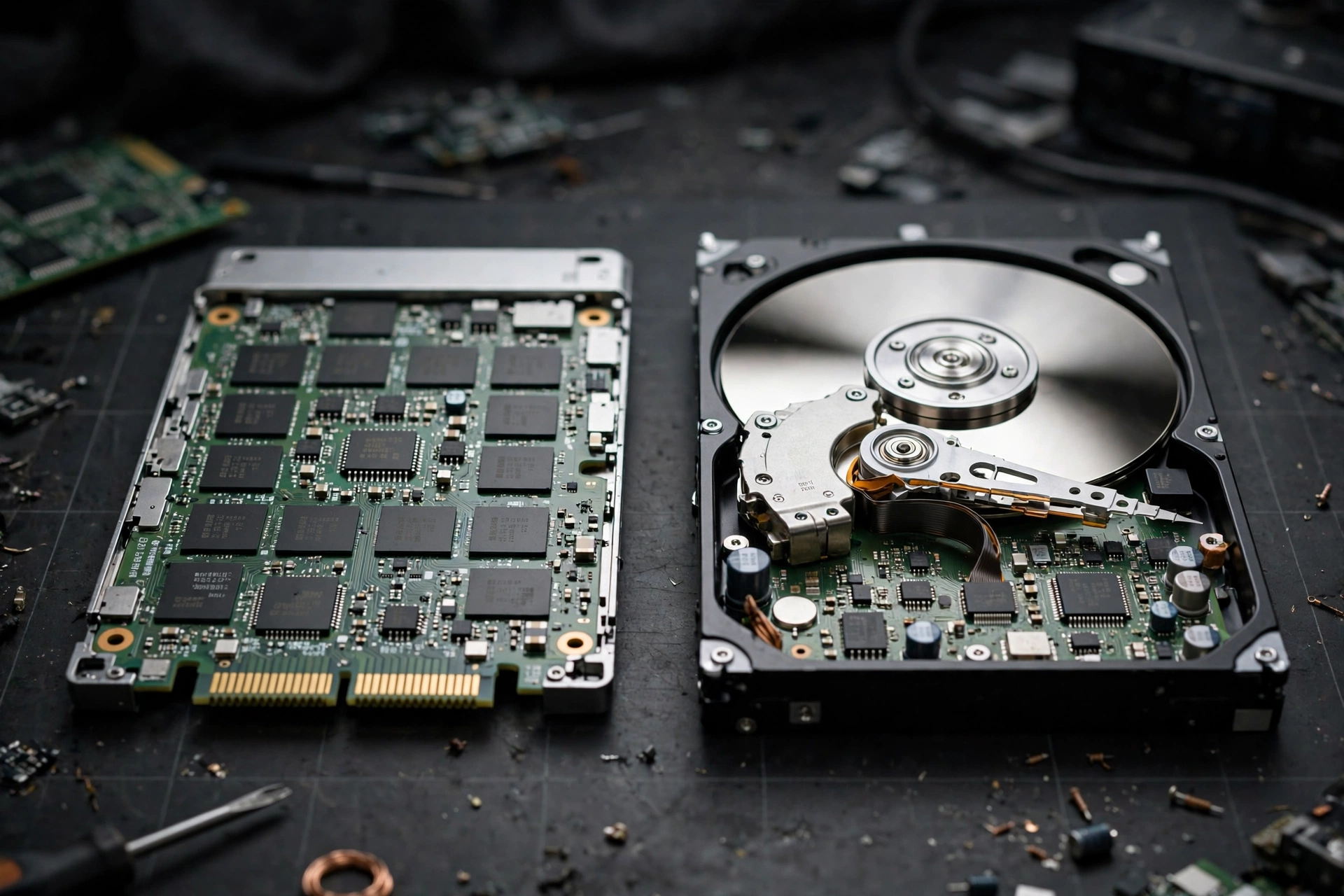
Memory: 8 GB is the minimum in 2026, and 16 GB is worth it if you keep many tabs and apps open or run demanding software. Storage: a 256 GB solid-state drive is the minimum, and 512 GB is more comfortable if you store photos and projects locally. The type of storage matters too — our guide to SSD vs HDD explains why a solid-state drive is the single best upgrade for a student laptop. Processor: don’t overthink it. Any current mid-range processor handles student work; the difference between two recent chips is rarely noticeable. Screen: aim for a bright display with a sharp resolution — you’ll stare at it for hours. And ignore the numbers that don’t matter: a laptop’s maximum turbo speed or its benchmark score tells you almost nothing about how it feels to use.
How to Make Your Laptop Last Four Years
A student laptop should survive your whole degree, and it will if you look after it. Keep the software updated, don’t fill the drive to the brim, and clean the vents occasionally — dust is the enemy of cooling. Use a sleeve or a case in your bag, and don’t leave the laptop in a hot car. Back up your work to the cloud, because a lost essay hurts more than a broken screen. And buy a laptop with a little headroom: the machine that feels fast in year one will feel merely adequate in year four, so a bit of extra memory and storage now pays off later. If the battery starts to fade in year three, remember that many laptops let you replace the battery — a cheap repair that can add another year of life.
A Quick Checklist Before You Buy
Before you hand over your money, run through this checklist. First, check your course requirements: does your university or department list specific software or minimum specs? Buy to those, not to a salesperson’s recommendation. Second, try the keyboard and trackpad in a shop if you can — you will use them for thousands of hours, and a keyboard that feels wrong will annoy you every day. Third, check the warranty and the return policy: a good warranty matters more on a laptop you carry everywhere than on a desktop that sits still. Fourth, look at battery ratings with scepticism — manufacturers test with the screen dimmed and Wi-Fi off, so expect less in real use. And finally, set the laptop up properly on day one: install updates, remove the trial software you don’t need, and set up your backups. A laptop that is set up well on the first day stays fast for years.
Frequently Asked Questions
How much should a student spend on a laptop?
It depends on the course. For reading, writing, and research, a budget laptop is enough. For most students, the mid-range tier offers the best value — a machine that lasts four years without feeling slow. Only courses with demanding software — engineering, design, film — genuinely need a premium laptop. Spend on the tier your course requires, not the tier that looks impressive.
Is 8 GB of memory enough for a student laptop?
Yes, for most courses. 8 GB handles documents, browsing, video calls, and light multitasking comfortably. But 16 GB is worth the upgrade if you run many apps at once, work with large files, or want the laptop to stay fast for four years. If the laptop’s memory can’t be upgraded later, buy more now.
Should students buy a Chromebook?
A Chromebook is a great choice if your work lives in a browser and your course doesn’t require specialist desktop software. They’re cheap, light, and have excellent battery life. But if your course needs Windows or Mac software — engineering tools, design apps, or specific university systems — a Chromebook will frustrate you.
Do students need a dedicated graphics card?
Only for specific courses. Most student work — writing, research, browsing, video calls — runs fine on integrated graphics. A dedicated graphics card matters for 3D design, video editing, CAD, and gaming. If your course doesn’t list it as a requirement, save the money and the battery life.
When is the best time to buy a student laptop?
Late summer is the traditional window, when back-to-school sales overlap with new model releases, but good deals appear throughout the year. Check whether your university offers education discounts — many manufacturers and retailers have student pricing that can save you a meaningful amount. And don’t wait until the first week of term, when the best deals are gone.
Final Thoughts
The best laptop for students is the one that fits your course, your budget, and your bag. Start with your course requirements, pick the tier that covers them, and spend on battery life, screen, and storage before you spend on raw power. A well-chosen laptop will carry you through four years of study — and the money you save by not overbuying is money you can spend on the things that actually matter.