The SSD vs HDD decision is the first choice you make when buying storage in 2026, and it affects everything about how your computer feels. An SSD makes your PC boot in seconds, open apps instantly, and load games without the wait. An HDD gives you far more space for the same money, which still matters if you store large photo libraries or video collections. The good news is that there is a clear right answer for most people, and it depends on what you use your computer for. This guide compares SSDs and HDDs on speed, price, capacity, durability, and reliability, so you can buy with confidence.
SSD vs HDD at a Glance
| Feature | SSD | HDD |
|---|---|---|
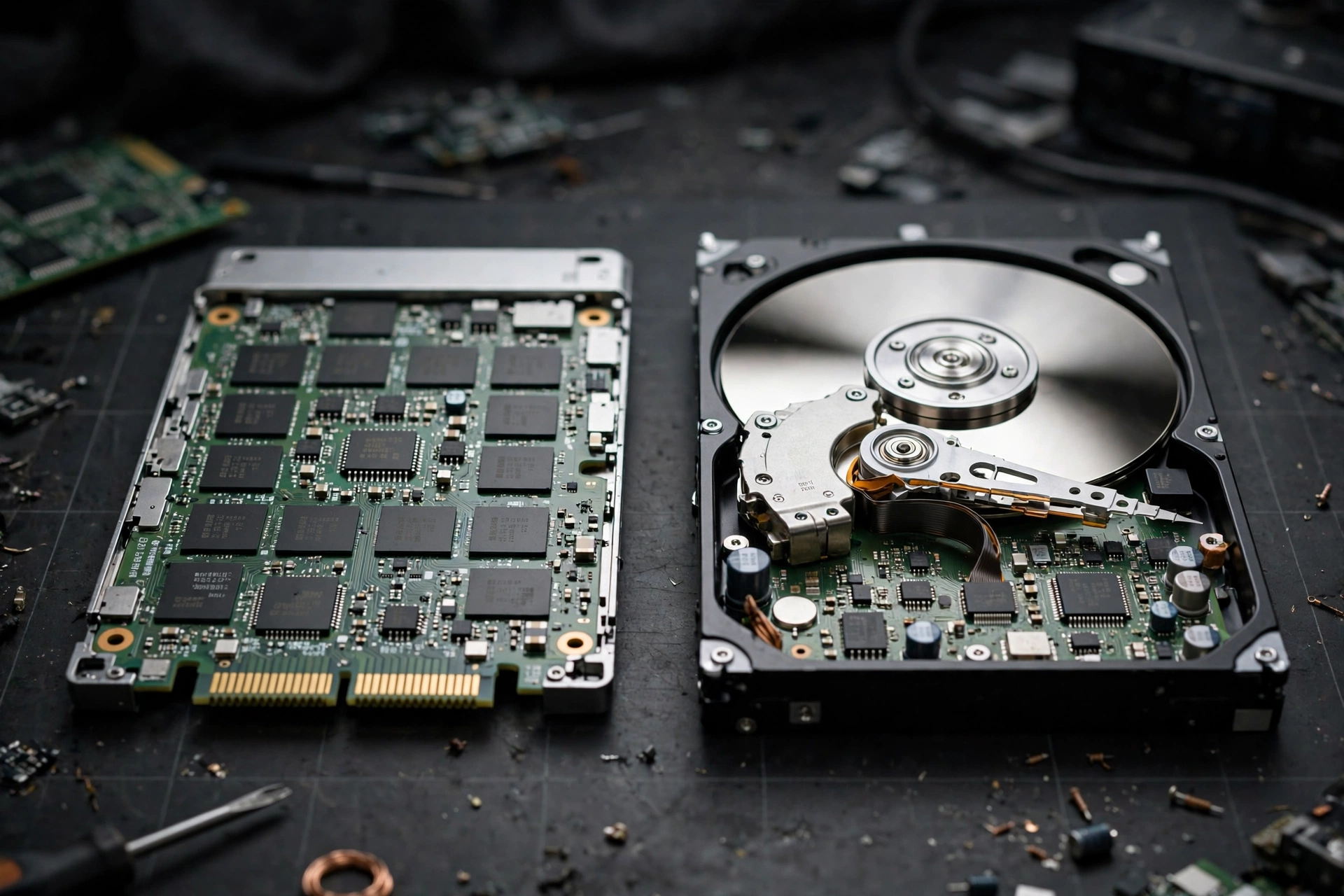
| How it stores data | Flash memory chips, no moving parts | Spinning magnetic disks and a moving head |
| Speed | Very fast: boots in seconds | Much slower: boots take a minute or more |
| Capacity per dollar | Lower: you pay more per terabyte | Higher: the cheapest way to store lots of data |
| Durability | Resists drops and bumps well | Fragile: drops can damage the disks |
| Noise and power | Silent, uses little power | Audible spinning, uses more power |
| Best for | Operating system, apps, games | Backups, media archives, bulk storage |
How SSDs Work — and Why They Are So Fast
A solid-state drive stores data on flash memory chips, the same kind of memory in your phone. There are no moving parts: the drive finds any piece of data instantly, instead of waiting for a disk to spin to the right spot. That is why everything feels faster. Windows boots in seconds rather than a minute, apps open the moment you click them, and games load levels without long waits. Modern NVMe SSDs, which plug directly into your motherboard, are the fastest of all and have become the standard in new laptops and desktops. The trade-off is cost: flash memory is more expensive per terabyte than magnetic storage, so large SSDs still carry a premium.
How HDDs Work — and Why They Are Still Around
A hard disk drive stores data on spinning metal platters, with a tiny arm that moves across the surface to read and write. It is the same basic technology that has been in computers for decades, refined to remarkable capacities: a single desktop drive can now hold many terabytes. HDDs are slow compared to SSDs, because the platter must physically spin to the data you need, and they make a faint whirring noise. But they are unbeatable on price per terabyte, which is why they still dominate in one job: storing large amounts of data cheaply. If you need eight terabytes of space for a media library or backups, an HDD is the sensible choice.
Speed Compared
Speed is where the SSD wins by a landslide, and it is the difference you will notice every day. A typical SATA SSD reads data roughly five times faster than a hard drive, and a modern NVMe SSD can be twenty or more times faster. In real terms, that means Windows starts in about ten seconds instead of a minute, Photoshop opens in a few seconds, and a large game loads in under half the time. Copying a big video file that takes minutes on an HDD finishes in seconds on an SSD. Even the best free AI tools feel snappier on an SSD, because models, files, and caches load without delay. If your computer feels slow, replacing the hard drive with an SSD is the single most effective upgrade you can make.
Price and Capacity
On price per terabyte, the hard drive still wins comfortably. A multi-terabyte HDD costs a fraction of an equivalent SSD, which is why they remain the default for backups, media servers, and network storage. SSD prices have fallen a lot, though, and the gap keeps shrinking. For most people, the practical choice is a 1 TB SSD for the system and programs, which holds Windows plus a healthy library of apps and games, and an HDD only if you need several terabytes of extra space. Avoid tiny SSDs: a 256 GB drive fills up fast once Windows, apps, and a few games are installed. Capacity planning matters more than squeezing the last bit of speed.
Durability and Reliability
SSDs are tougher in everyday use because they have no moving parts. Drop a laptop with an SSD and the drive usually survives; drop one with a hard drive and you may lose data. SSDs do wear out, though: each memory cell can only be written a finite number of times, although modern drives are rated for many years of normal use and warn you well before they fail. Hard drives are more vulnerable to physical shock, but their failure mode is often gradual, with warning sounds and errors that give you time to back up. Neither drive is a substitute for backups. Every drive fails eventually, so keep a copy of anything important somewhere else, whatever you buy.
Which Drive Should You Buy?
The answer depends on the job. For a laptop or a main desktop, buy an SSD: the speed difference transforms the whole computer, and a 1 TB NVMe drive is the sweet spot for most people. For gaming, an SSD is effectively required now, because modern games are designed around fast loading; a hard drive will leave you waiting at every loading screen. If you are putting together a gaming machine, our budget gaming PC build guide explains where storage fits in the overall budget. For backups, media archives, and home servers, buy an HDD, where capacity per dollar matters more than speed. For a tight budget, a smaller SSD for Windows plus a large HDD for files is a smart compromise. If your laptop has only one drive slot, a single 1 TB NVMe SSD is the simplest answer, and you can add an external drive later for backups.
Can You Use Both?
Yes, and for many people this is the ideal setup. Put Windows, your apps, and your current games on a fast SSD, and keep photos, videos, and backups on a large HDD. Most desktop PCs have room for both, and many laptops accept a second drive or an external one. The operating system and programs get SSD speed, while the bulk storage stays cheap. It is the best of both worlds, and it is how most experienced users set up their machines.
SSD Types Explained: SATA, NVMe and External
Not all SSDs are the same, and the type matters. SATA SSDs use the older 2.5-inch form factor and top out at much lower speeds than NVMe drives, but they are cheap and they fit older laptops and desktops, which makes them the best upgrade for an aging machine. NVMe SSDs plug into a small M.2 slot on the motherboard and are several times faster; they are the standard choice for any new PC and the right pick for your system drive. External SSDs connect over USB and are ideal for portable storage, backups, and moving large files between computers: they are slower than an internal NVMe drive but far faster than an external hard drive, and they survive being carried in a bag. When you shop, check which type your computer supports before you buy.
Frequently Asked Questions
Is an SSD worth it for an old computer?
Yes, it is the best upgrade you can make. Swapping a hard drive for an SSD makes an old laptop or desktop feel like a new machine: faster booting, faster apps, and faster everything. It is cheap, easy to install, and usually takes under an hour.
How long do SSDs last?
For normal home use, a modern SSD typically lasts many years — often longer than the computer it is in. Drives are rated by total data written, and reaching that limit takes heavy, constant use. Your drive’s health software will warn you long before it becomes a problem.
Can I replace my laptop’s hard drive with an SSD?
In most cases, yes. Most laptops use a standard 2.5-inch SATA drive or an M.2 slot, both of which accept SSDs. Check your laptop’s manual or the manufacturer’s website for the right form factor, clone your old drive or reinstall Windows, and you are done.
Do games run faster on an SSD?
Games load much faster on an SSD, with shorter loading screens and less stuttering when the game streams in new areas. The frame rate itself depends on your graphics card, not the drive, so an SSD will not raise your FPS — but it makes the whole experience smoother.
Should I buy an HDD for backups?
Yes. Hard drives are the most cost-effective way to keep large backups, and a big external HDD is ideal for a full system backup. Keep the backup drive disconnected when you are not using it, and ideally keep a second copy somewhere else, such as cloud storage.
Final Verdict
For most people in 2026, the answer is simple: buy an SSD for your system and programs, and add an HDD only if you need lots of cheap space. The speed difference is too large to ignore, and SSD prices have fallen enough that a 1 TB drive is affordable for almost any build. Use both together when you can, back up what matters, and enjoy a computer that finally feels fast.