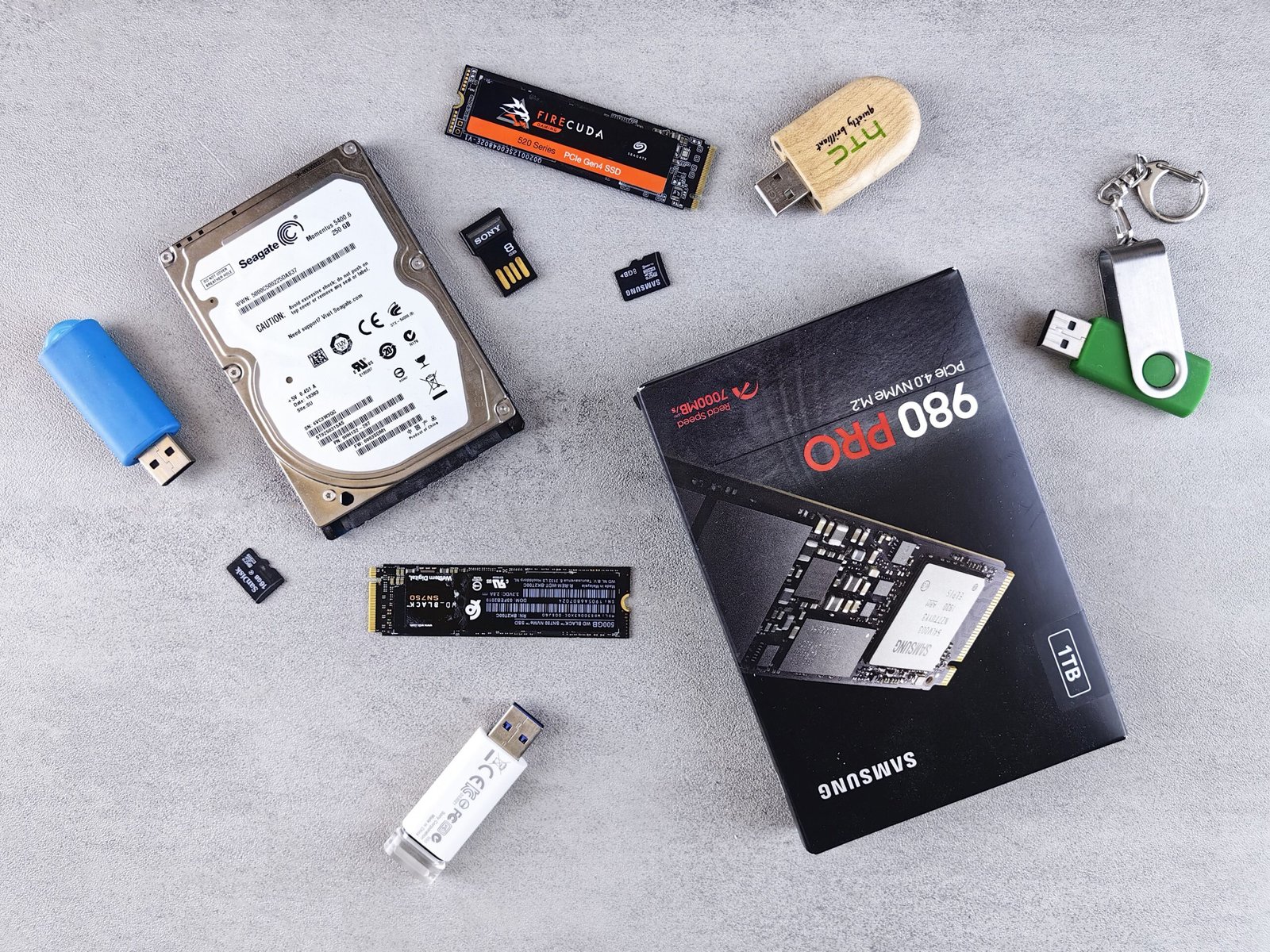
If your computer feels slow, the storage drive is often the culprit. Choosing between an SSD and an HDD affects boot time, app loading, file transfers, and even how long your device lasts. Both technologies still have a place, but they serve different needs.
This guide explains the SSD vs HDD debate in plain language. You will learn how each drive works, how they compare in speed, durability, price, and capacity, and which one fits your situation.
What Is an HDD?
A hard disk drive (HDD) stores data on spinning magnetic platters. A mechanical arm with a read/write head moves across the platters to find and write information, much like a record player needle.
Because it relies on moving parts, an HDD has physical limits on speed. It also produces noise and vibration, and it is more sensitive to shocks.
What Is an SSD?
A solid state drive (SSD) stores data on flash memory chips, with no moving parts. Information is accessed electronically, which is why SSDs respond much faster than mechanical drives.
SSDs come in several forms. The two you will see most often are SATA SSDs, which use the same connection as older drives, and NVMe SSDs, which connect through the faster PCIe interface and often look like small sticks installed directly on the motherboard.
SSD vs HDD: Key Differences
Speed
Speed is the biggest difference. Typical HDDs transfer data at roughly 80 to 160 MB/s in sequential tasks. SATA SSDs usually reach around 500 to 560 MB/s because of the interface limit. NVMe SSDs can go far higher, with many modern models reaching several thousand MB/s.
In daily use, the gap is obvious. A computer with an SSD boots faster, opens programs quickly, and feels more responsive. An HDD can take noticeably longer for the same tasks, especially when many programs load at once.
Durability and Reliability
Because SSDs have no moving parts, they handle bumps and vibration better, which is helpful in laptops. HDDs can be damaged if a laptop is dropped while the drive is active.
That said, no drive lasts forever. SSDs have a finite number of write cycles, though modern drives are usually rated for years of normal use. HDDs can fail mechanically. In both cases, backups are essential.
Noise, Heat, and Power Use
SSDs are silent and generally consume less power, which can contribute to better laptop battery life. HDDs spin and click, and they use more energy. The difference is small on a desktop but meaningful on a portable device.
Price and Capacity
HDDs usually cost less per gigabyte, making them attractive for storing large amounts of data. SSD prices have fallen over the years but still tend to be higher per gigabyte at large capacities. Actual prices vary by brand, region, and time, so compare current listings.
Quick Comparison Table
| Feature | SSD | HDD |
|---|---|---|
| Speed | Much faster | Slower |
| Moving parts | None | Yes |
| Shock resistance | Better | Weaker |
| Noise | Silent | Audible |
| Cost per GB | Higher | Lower |
| Best for | OS, apps, games | Bulk storage, backups |
SATA SSD vs NVMe SSD
If you choose an SSD, you will face another decision.
SATA SSDs offer a big upgrade over HDDs and work with many older computers. They are a smart choice for upgrading an aging laptop or desktop.
NVMe SSDs are faster and ideal for newer systems, content creation, and gaming. Before buying, check that your motherboard or laptop has a compatible M.2 slot and supports NVMe. Some M.2 slots support only SATA, so consult your device manual.
For ordinary browsing, office work, and streaming, the difference between SATA and NVMe is less noticeable than the difference between an HDD and any SSD.
Which Storage Type Is Best for Your Needs?
For Everyday Home and Office Use
Choose an SSD. Boot speed and app responsiveness matter more than raw capacity for most people, and 500 GB to 1 TB is often enough for general use.
For Gaming
An SSD reduces loading times and helps with games that stream large amounts of data. Many players choose an SSD for the system and installed games, and an HDD for extra storage.
For Video Editing and Creative Work
An NVMe SSD makes sense for active projects and editing caches. Pair it with larger HDDs or external drives for archives and finished work.
For Backups and Archives
HDDs remain practical here. Their lower cost per gigabyte suits photos, videos, and backups that you access infrequently.
For Older Computers
Replacing an old HDD with an SSD is among the most effective upgrades for a slow machine. In many cases, it makes the computer feel significantly newer without replacing the processor or memory.
The Hybrid Approach: Use Both
You do not always have to choose one. Many desktop users install a smaller SSD for Windows and applications and add a larger HDD for files. This balances speed and cost.
Laptops often have room for only one internal drive, so an external drive can serve as extra storage or backup.
How to Upgrade From an HDD to an SSD
- Back up your data to an external drive or cloud service.
- Check compatibility: form factor (2.5-inch or M.2), interface (SATA or NVMe), and available slots.
- Choose enough capacity for your files plus free space, since drives perform best when not completely full.
- Clone your old drive or perform a clean installation of the operating system.
- Update firmware and drivers if the manufacturer recommends it.
If you are not comfortable opening your device, a technician can handle the installation.
Common Myths
- “SSDs wear out quickly.” For typical home use, modern SSDs generally last for years.
- “HDDs are obsolete.” They remain useful for inexpensive, high-capacity storage.
- “Bigger always means better.” Capacity matters, but speed and reliability matter just as much for your main drive.
Frequently Asked Questions
1. Is an SSD better than an HDD for gaming?
Generally yes. An SSD shortens load times and reduces stutter in games that stream data. Frame rates depend mainly on your graphics card and processor, not on the storage drive.
2. How long do SSDs and HDDs last?
Lifespan varies by model, usage, and conditions. Both can last for years under normal use, but either can fail unexpectedly, so keep regular backups regardless of drive type.
3. Can I use an SSD and an HDD together?
Yes. Many desktops use an SSD for the operating system and programs and an HDD for large files. Some laptops also support dual drives, though many do not.
4. Will an SSD make my old laptop faster?
In most cases, yes. Moving from an HDD to an SSD often speeds up booting, app loading, and general responsiveness, although an extremely old processor or low memory can still limit performance.
5. Is NVMe worth it over a SATA SSD?
It depends. NVMe drives are faster, which benefits heavy workloads such as large file transfers or video editing. For everyday tasks, a SATA SSD may feel nearly as responsive, so price and compatibility often decide.
Conclusion
For most people, an SSD is the better choice as the main drive because of its speed, durability, and quiet operation. HDDs still make sense when you need large, affordable storage for archives and backups. If your budget allows, combine the two: an SSD for everyday performance and an HDD for bulk files. Whichever you choose, keep regular backups, because no storage device is immune to failure.