Few things are more frustrating than a laptop that dies halfway through a meeting or a flight. The good news is that you can often get noticeably more time from a single charge without buying anything new. Most of the gains come from a handful of Windows 11 settings and a few good habits.
This guide explains how to improve laptop battery life on Windows 11, from quick fixes to deeper changes. Menu names can differ slightly between Windows 11 versions and laptop brands, so use the search box in Settings if you cannot find an option.
First, Find Out What Is Draining Your Battery
Before changing settings at random, look at where the power is actually going.
- Open Settings and go to System > Power & battery.
- Select Battery usage to see which apps used the most power over the last 24 hours or 7 days.
- Look for apps that use a lot of power in the background, especially ones you rarely open.
This quick check often reveals a single culprit, such as a video-conferencing app, a cloud sync tool, or a browser with too many tabs.
Use Power Mode and Battery Saver
Choose a Better Power Mode
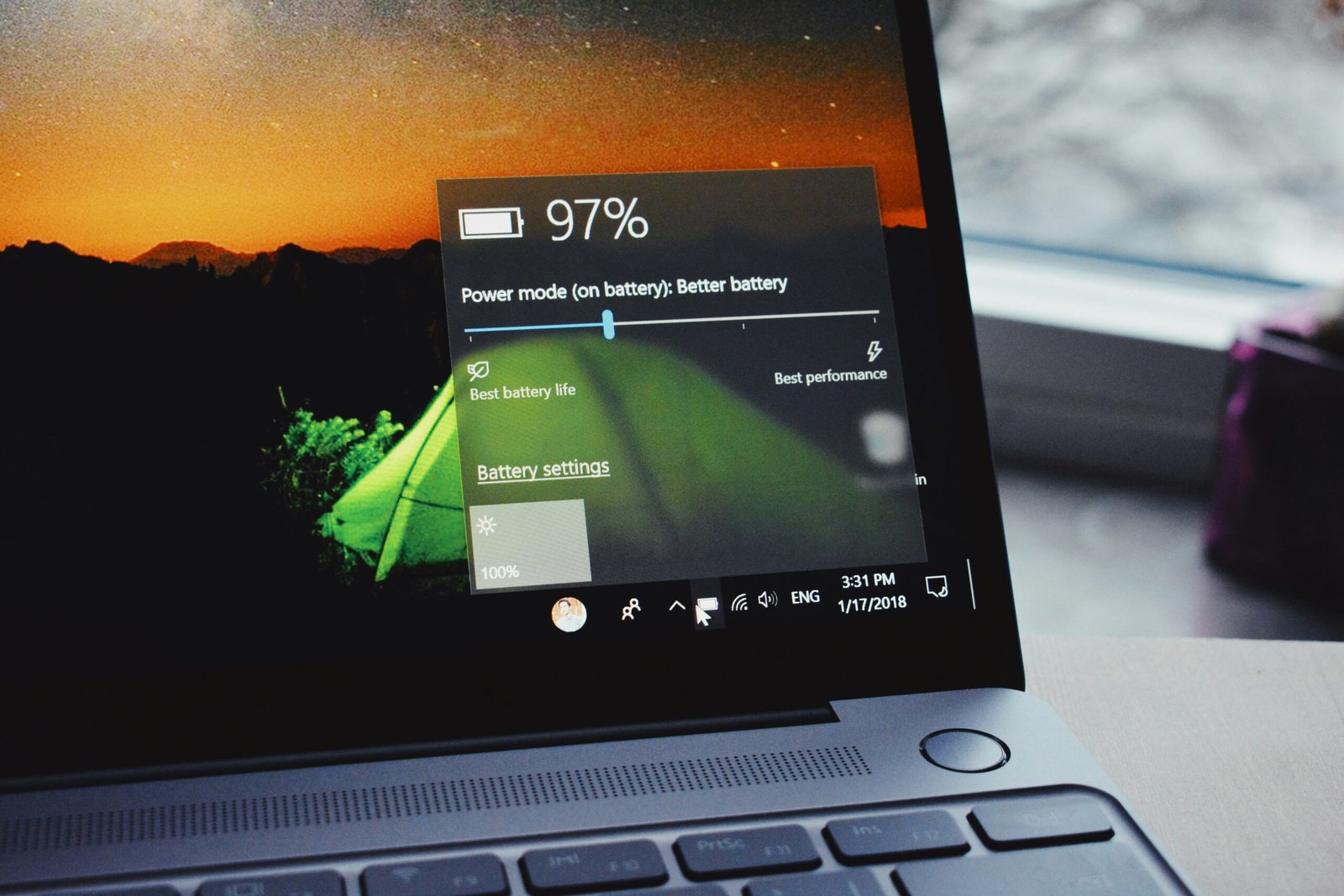
On the same Power & battery page, you will find Power mode. Switching from “Best performance” to “Balanced” or “Best power efficiency” while unplugged reduces how hard the processor works. For email, documents, and browsing, you will rarely notice the difference.
Turn On Battery Saver
Battery saver reduces background activity and lowers screen brightness to stretch your remaining charge. In newer Windows 11 versions this feature is called Energy saver. You can set it to turn on automatically when the battery drops to a level you choose, such as 20 or 30 percent.
Manage Screen Brightness and Display Settings
The screen is usually one of the biggest power consumers on a laptop.
- Lower brightness. Even a modest reduction can add meaningful time.
- Shorten screen timeout. Under Power & battery > Screen, sleep & hibernate timeouts, choose a shorter time for battery use.
- Adjust refresh rate. If your laptop has a high refresh rate display, such as 120 Hz, go to System > Display > Advanced display and try a lower rate or enable dynamic refresh rate if offered. Lower rates use less power.
- Use dark mode if you have an OLED screen, since dark pixels use less energy on those panels. On standard LCD screens the benefit is small.
Control Startup and Background Apps
Programs that launch automatically keep working even when you are not using them.
Disable Unneeded Startup Apps
Open Settings > Apps > Startup and turn off apps you do not need right away. You can also check the Startup apps tab in Task Manager (press Ctrl + Shift + Esc).
Limit Background Activity
Open Settings > Apps > Installed apps, select the three dots beside an app, choose Advanced options, and review Background apps permissions if available. Setting rarely used apps to “Never” can reduce hidden power drain. Some apps will not show this option.
Pause Cloud Syncing When Needed
Services like OneDrive, Google Drive, and Dropbox constantly sync files. Pause syncing when you are low on battery and resume it once you are plugged in.
Optimize Your Browser
Browsers are a major source of battery use because of tabs, video, and extensions.
- Close tabs you are not using.
- Remove extensions you do not need.
- Enable the browser’s built-in power or efficiency mode. Microsoft Edge and Chrome both offer options that reduce background tab activity.
- Avoid streaming video at the highest quality when you are unplugged.
Turn Off Features You Are Not Using
Small features add up over several hours.
- Bluetooth: Turn it off when no accessories are connected.
- Wi-Fi: Switch to Airplane mode if you do not need internet access.
- Keyboard backlight: Reduce brightness or set it to turn off after a short time.
- Location services: Review which apps can use your location in Settings > Privacy & security > Location.
- Connected accessories: USB devices, external drives, and phones charging from the laptop all draw power.
Adjust Sleep and Hibernate Settings
Make sure your laptop goes to sleep sooner when you are away. In Screen, sleep & hibernate timeouts, choose a short “when on battery power, put my device to sleep after” value.
Hibernate saves your session to disk and uses almost no power, which is useful if you will not be back for hours. If hibernate is missing from your power menu, you may need to enable it in the classic Control Panel power options.
Keep Windows and Drivers Updated
Updates sometimes include power-management improvements. Check Settings > Windows Update, and install optional driver updates for your graphics and chipset when your laptop manufacturer recommends them. Manufacturer support apps from brands like Dell, HP, Lenovo, and ASUS can also provide firmware updates and battery-specific tools.
Check Your Battery’s Health
Sometimes the problem is not settings but an aging battery. Lithium-ion batteries lose capacity over time, so an older laptop may simply hold less charge than it once did.
Generate a Battery Report
- Right-click the Start button and open Terminal or Command Prompt.
- Type
powercfg /batteryreportand press Enter. - Open the HTML file path shown in the message.
Compare the Design capacity with the Full charge capacity. A large gap means the battery has worn down significantly, and replacement may be the best fix. If the laptop is under warranty, contact the manufacturer.
Healthy Charging Habits
You can slow battery wear with a few simple habits.
- Avoid exposing the laptop to high heat, such as leaving it in a hot car or on a bed or blanket that blocks vents.
- Do not constantly run the battery down to zero.
- Many laptops include a charge limit option in the manufacturer’s software, which stops charging at around 80 percent. This can help if the laptop stays plugged in most of the time. Check your brand’s app, such as Lenovo Vantage, Dell Power Manager, or MyASUS.
- Use the charger designed for your laptop or a high-quality compatible one.
Reduce Heat and Workload
Hot laptops waste energy because fans spin faster and processors work harder.
- Clean dust from vents when safe to do so.
- Use the laptop on a hard, flat surface.
- Close heavy applications such as video editors and games when you do not need them.
- Avoid running multiple heavy tasks at once on battery power.
A Quick Battery-Saving Checklist
- Check Battery usage and close heavy apps.
- Enable Battery saver or Energy saver.
- Set Power mode to Best power efficiency while unplugged.
- Lower brightness and shorten screen timeout.
- Disable unneeded startup apps.
- Turn off Bluetooth and unused features.
- Run a battery report to check health.
Frequently Asked Questions
1. Why does my laptop battery drain so fast on Windows 11?
Common causes include high screen brightness, background apps, many browser tabs, and an aging battery. Check Battery usage in Settings to find the biggest drains, then run a battery report to check the battery’s health.
2. Does battery saver slow down my laptop?
It can reduce performance slightly by limiting background activity and, in some cases, lowering brightness. For everyday tasks like browsing and writing, most people barely notice the difference.
3. Should I keep my laptop plugged in all the time?
Modern laptops manage charging well, but constant heat and a full charge can age batteries faster. If your laptop offers a charge limit setting, using it can help when you are mostly plugged in.
4. How do I know if my laptop battery needs replacing?
Run powercfg /batteryreport and compare design capacity with full charge capacity. If the full charge capacity is far lower, or the laptop shuts down unexpectedly, the battery may need replacing.
5. Does dark mode save battery on a laptop?
Only on OLED screens, where dark pixels use less power. On regular LCD screens, the savings are minimal, so lowering brightness helps far more.
Conclusion
Better battery life usually comes from a combination of small changes rather than one big fix. Start by identifying power-hungry apps, switch on Battery saver and a more efficient power mode, and trim unnecessary startup programs. Then check your battery’s health and adopt sensible charging habits. If the battery has simply worn out, a replacement can make an older laptop feel like new again.