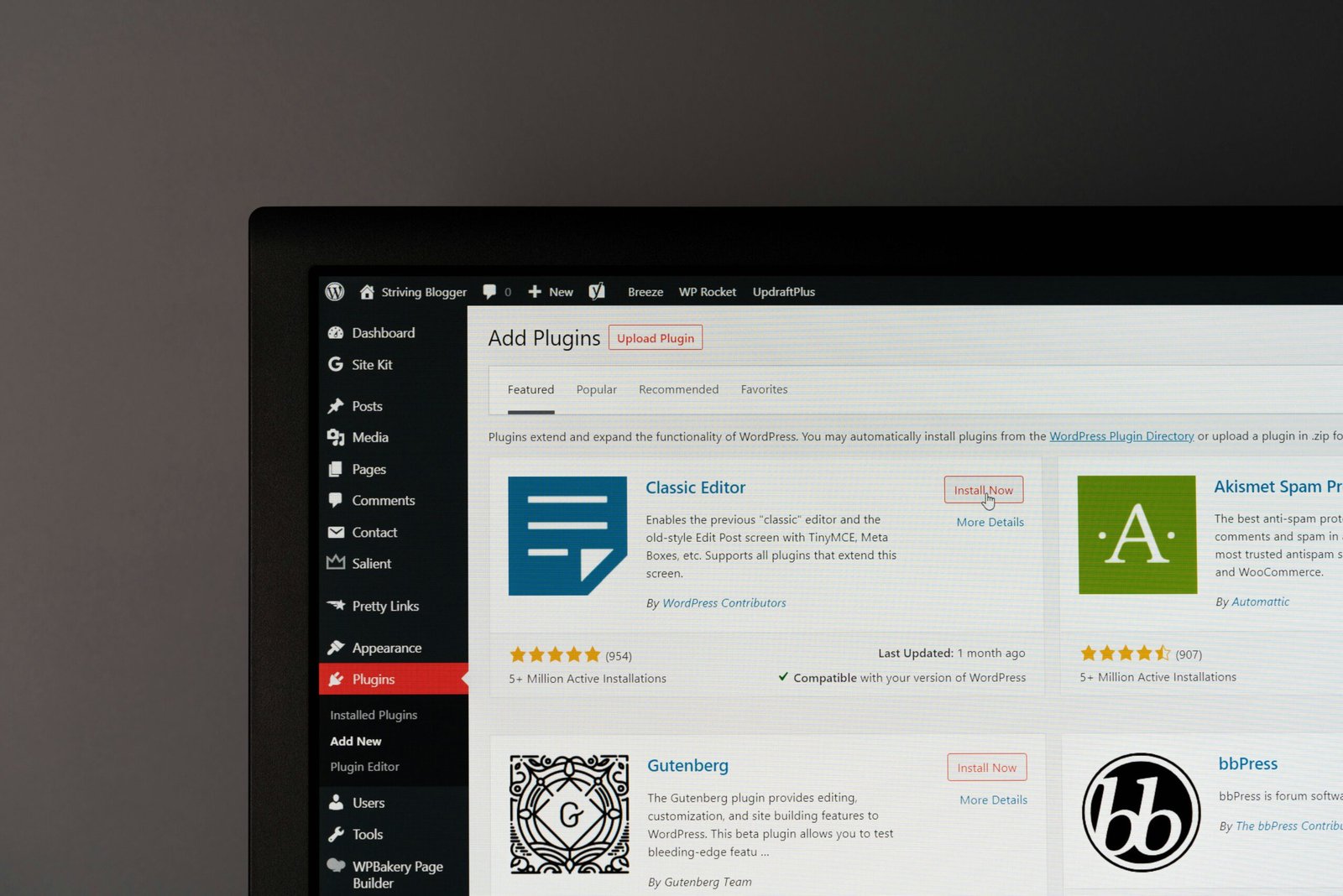
Plugins are what make WordPress so flexible. They add features such as SEO tools, contact forms, backups, and security without any coding. But with tens of thousands of options available, beginners often install too many and end up with a slow, cluttered website.
This guide covers the best free WordPress plugins for beginners, grouped by purpose. You do not need all of them. Start with the essentials, add only what your site actually needs, and always check the plugin’s page in the WordPress.org directory for current details, since features and free-version limits change.
How to Choose a Good WordPress Plugin
Before installing anything, check these points on the plugin’s directory page:
- Last updated: Prefer plugins updated recently. Abandoned plugins can create security risks.
- Compatibility: Look for a note that it works with your WordPress version.
- Active installations and reviews: These are useful signals, though not guarantees.
- Support: See whether the developer answers questions in the support forum.
- Free vs premium: Many “free” plugins hide key features behind paid upgrades. Read what the free version really includes.
Install plugins only from the official WordPress directory or from trusted developers.
SEO Plugins
Search engine optimization plugins help you manage titles, descriptions, sitemaps, and basic on-page checks.
Yoast SEO
Yoast SEO is one of the best-known options. It helps you edit SEO titles and meta descriptions, generates XML sitemaps, and offers readability and keyword guidance. The free version covers the basics for most small sites.
Rank Math
Rank Math is another popular choice that bundles many features, such as schema markup options and redirection tools, in its free version. Its interface offers a setup wizard that beginners may find helpful.
Use only one SEO plugin at a time. Running two can create duplicate tags and conflicts.
Security Plugins
Wordfence Security
Wordfence provides a firewall, malware scanning, and login protection. The free version covers core features, while premium plans offer additional services such as real-time threat updates. It is a common choice for beginners who want visible security controls.
Limit Login Attempts
A login-limiting plugin reduces the risk of brute-force attacks by blocking repeated failed logins. Some security plugins already include this feature, so avoid duplicating it.
Security also depends on habits: use strong passwords, keep WordPress and plugins updated, and delete themes and plugins you do not use.
Backup Plugins
UpdraftPlus
UpdraftPlus is widely used to back up your site and restore it when something goes wrong. The free version lets you schedule backups and store them in remote locations such as Google Drive or Dropbox, with extra features available in the paid version.
A backup stored only on your own web host is risky if the host has a problem. Send copies to a separate location and test restoring them occasionally.
Speed and Caching Plugins
Site speed affects user experience and search performance.
LiteSpeed Cache
If your host uses LiteSpeed servers, LiteSpeed Cache offers server-level caching and optimization tools. It has many settings, so beginners should follow the default recommendations.
WP Super Cache
WP Super Cache is a simple caching plugin from Automattic that creates static versions of your pages to load faster. Its straightforward setup suits beginners on hosts that do not use LiteSpeed.
Only run one caching plugin at a time. Many hosts also provide their own caching, so check your host’s documentation before installing one.
Image Optimization Plugins
Large images are a common cause of slow pages.
Smush or ShortPixel
Plugins like Smush and ShortPixel compress images and can enable lazy loading. Free versions typically have limits on image size or monthly usage, so review them. You can also compress images before uploading using free online tools or desktop software.
Contact Form Plugins
WPForms Lite and Contact Form 7
WPForms Lite offers a drag-and-drop form builder that is easy for beginners. Contact Form 7 is a long-standing free option that is more manual and may require basic setup knowledge. Either can handle a simple contact page.
To reduce spam, pair forms with anti-spam tools such as CAPTCHA options or Akismet.
Spam Protection
Akismet Anti-Spam
Akismet filters spam comments and form submissions. It is installed with many WordPress setups, but may require an API key, and commercial sites may need a paid plan under its terms. Check the current licensing rules before relying on it for a business website.
Analytics and Tracking
Site Kit by Google
Site Kit is Google’s official plugin, which connects your site with tools like Google Search Console and Google Analytics and shows key data inside your WordPress dashboard. It is a convenient way for beginners to start monitoring performance without editing code.
Helpful Utility Plugins
Redirection
Redirection manages 301 redirects and tracks 404 errors. It is useful when you change URLs or delete pages, helping visitors and search engines find the right content.
WP Mail SMTP
Sometimes WordPress emails, such as password resets and form notifications, land in spam or never arrive. WP Mail SMTP lets you send email through a proper email service to improve reliability.
Really Simple SSL
If your site has trouble moving to HTTPS, a plugin like Really Simple SSL can help configure the redirect. Many hosts now install SSL automatically, so check with yours first.
A Simple Starter Stack
Here is a sensible beginner combination:
- One SEO plugin (Yoast SEO or Rank Math).
- One security plugin (Wordfence or similar).
- One backup plugin (UpdraftPlus).
- One caching plugin, matched to your host.
- One image optimization plugin.
- One contact form plugin.
- Site Kit by Google for analytics.
That is plenty for a typical blog or small business website.
Common Plugin Mistakes to Avoid
- Installing too many plugins. Quality matters more than quantity, and each plugin adds code to your site.
- Using overlapping plugins. Two SEO or caching plugins can conflict.
- Ignoring updates. Outdated plugins are a leading cause of hacked sites.
- Using nulled or pirated plugins. They often contain malware.
- Not testing after changes. Check your site after installing or updating plugins.
- Skipping backups. Always back up before major changes.
How to Install a Plugin Safely
- Go to Plugins > Add New Plugin in your dashboard.
- Search for the plugin by name.
- Check its rating, update date, and compatibility.
- Click Install Now, then Activate.
- Follow the setup wizard and review basic settings.
- Test your site on desktop and mobile.
Frequently Asked Questions
1. How many WordPress plugins should I install?
There is no magic number. Install only the plugins you need. A lean site with well-chosen plugins usually performs better than one with dozens of unused ones.
2. Are free WordPress plugins safe?
Plugins from the official WordPress directory are reviewed, but safety also depends on updates and developer quality. Choose actively maintained plugins and remove those you do not use.
3. Do I need both Yoast SEO and Rank Math?
No. Use only one SEO plugin to avoid duplicate tags and conflicts. Choose the one whose interface and features suit you.
4. Will too many plugins slow my website?
They can. Poorly coded plugins or ones that load heavy scripts can reduce speed. Test your site’s performance after adding new plugins.
5. Should I use a caching plugin if my host already has caching?
Check your host’s documentation. Some hosts provide built-in caching, and adding another plugin may be unnecessary or cause conflicts.
Conclusion
The best free WordPress plugins for beginners are the ones that solve a real need without weighing down your site. Begin with SEO, security, backups, speed, and a simple contact form. Keep everything updated, avoid overlapping tools, and review your plugin list regularly. A tidy, well-maintained setup will serve your website far better than a long list of installed extras.