Your phone knows where you go, who you talk to, what you search for, and which apps you use. That is a lot of personal information, and many people never review how it is shared. The good news is that Android includes powerful privacy controls, and a few minutes of adjusting them can make a real difference.
This guide covers the best Android privacy settings to change right now. Menu names and locations vary between Android versions and manufacturers such as Samsung, Google Pixel, Xiaomi, and OnePlus. If you cannot find an option, use the search bar in Settings.
1. Review App Permissions
Many apps ask for more access than they need. A flashlight app has no reason to read your contacts.
- Open Settings > Security & privacy > Privacy > Permission manager (the path may differ on your phone).
- Tap a permission such as Location, Camera, Microphone, or Contacts.
- Review which apps have access and change it to Don’t allow when it is unnecessary.
For location, camera, and microphone, choose Allow only while using the app whenever possible, instead of allowing access all the time.
2. Use Approximate Location Instead of Precise
On Android 12 and newer, you can give apps an approximate location rather than your exact position. Weather and shopping apps often work fine with approximate access. When an app asks for location, choose Approximate unless precise tracking is genuinely needed, such as for navigation or ride-hailing.
3. Check the Privacy Dashboard
Android 12 and later include a Privacy dashboard that shows which apps accessed your location, camera, and microphone over a recent period, usually the past 24 hours or more. If an app you rarely use appears frequently, revoke its permissions or uninstall it. This dashboard is one of the easiest ways to spot suspicious behavior.
4. Turn On Camera and Microphone Controls
Newer Android versions show an indicator, usually a green dot, when an app is using your camera or microphone. You can also use quick settings toggles to block camera and microphone access for all apps at once on supported devices. Look for Camera access and Mic access in Settings > Privacy, or add the toggles to your quick settings panel. Keep them off when you do not need them.
5. Remove Permissions From Unused Apps
Android can automatically remove permissions from apps you have not used for a while. In many versions, you can find this in an app’s permission page, listed as Pause app activity if unused or Remove permissions if app isn’t used. Make sure it is enabled, and uninstall apps you no longer need. Fewer apps mean fewer data collectors.
6. Limit Ad Tracking
Android assigns an advertising ID that apps can use to build profiles for personalized ads.
- Go to Settings > Privacy > Ads (or Settings > Google > Ads).
- Select Delete advertising ID if available, or turn off ad personalization depending on your version.
This does not remove ads, but it makes them less targeted and limits cross-app tracking.
7. Manage Your Google Account Privacy
Your Google account may store activity from searches, locations, YouTube, and voice interactions. Open Settings > Google > Manage your Google Account, then go to Data & privacy and review:
- Web & App Activity
- Location History (now called Timeline, with more data stored on-device in recent versions)
- YouTube History
- Ad settings
You can pause these histories, set auto-delete periods, or delete past data. Use Privacy Checkup in your Google account for a guided review. Be aware that turning off some settings may reduce personalization, such as route suggestions or recommendations.
8. Secure Your Lock Screen
A strong lock screen protects everything if your phone is lost or stolen.
- Use a strong PIN, password, or pattern, and avoid simple codes like 1234.
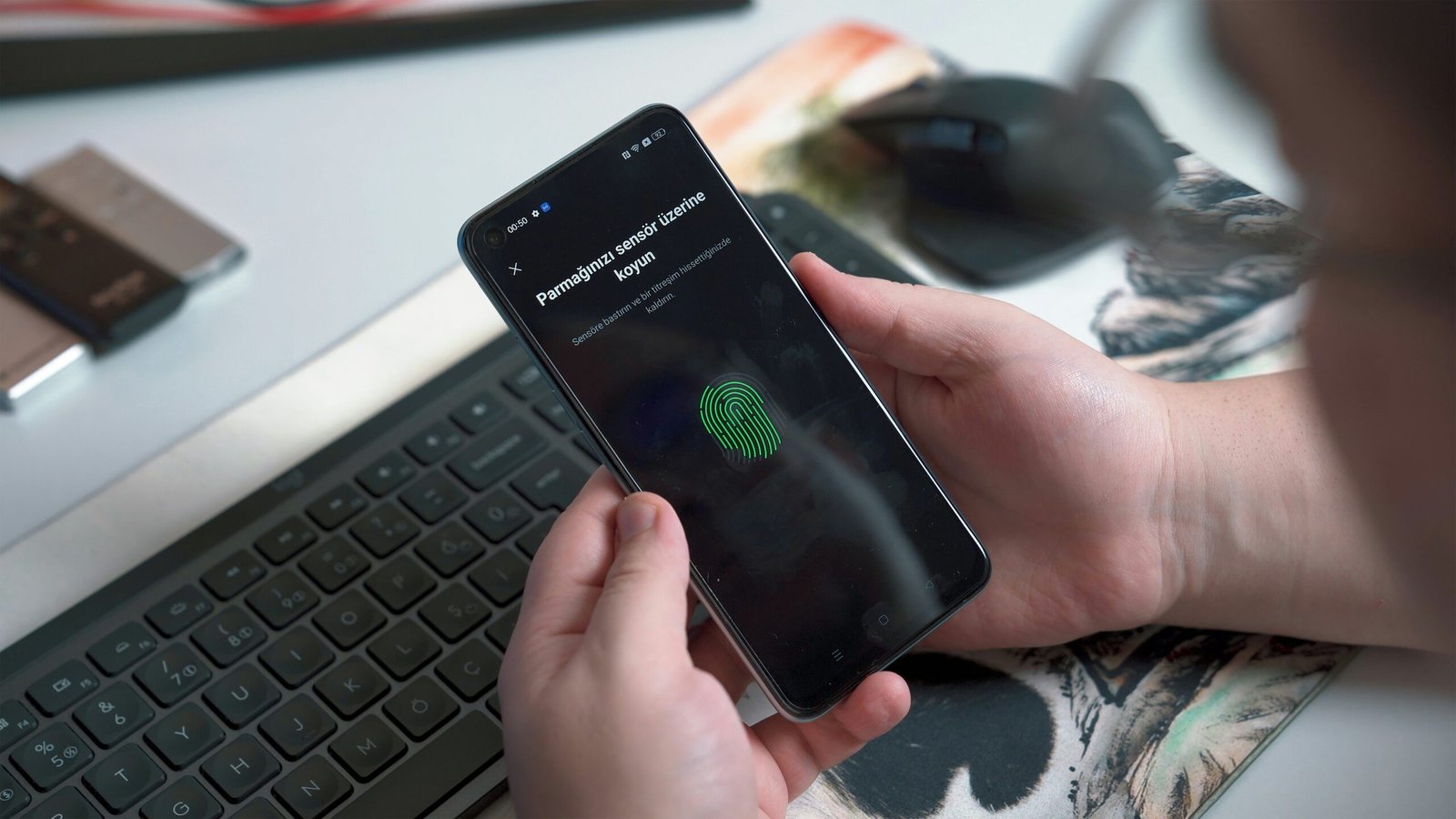
- Add fingerprint or face unlock for convenience, understanding that biometrics have trade-offs in some situations.
- Set the screen to lock automatically after a short time.
Hide Sensitive Notifications
Go to Settings > Notifications > Notifications on lock screen and choose to hide sensitive content. This prevents messages, codes, and emails from appearing to anyone who glances at your screen.
9. Keep Google Play Protect Turned On
Google Play Protect scans apps for harmful behavior. Open the Play Store, tap your profile icon, select Play Protect, and make sure scanning is enabled. Also keep Install unknown apps disabled for browsers and messaging apps unless you have a specific reason to allow it. Apps installed from outside official stores are a major source of malware.
10. Update Android and Your Apps
Security updates fix vulnerabilities that attackers exploit. Check Settings > System > Software update and install updates promptly. Enable automatic app updates in the Play Store as well. If your phone no longer receives security updates from the manufacturer, consider upgrading when possible, since an unsupported device is harder to protect.
11. Review Wi-Fi, Bluetooth, and Nearby Device Scanning
Some phones continue scanning for Wi-Fi networks and Bluetooth devices even when those features are switched off, to improve location accuracy. Look in Settings > Location > Location services and review options such as Wi-Fi scanning and Bluetooth scanning. Turning them off may slightly reduce location accuracy but limits background scanning.
Also turn off Bluetooth when you are not using it, and avoid connecting to unknown public Wi-Fi networks without extra precautions.
12. Use Private Space or Secure Folders for Sensitive Apps
Some Android versions and manufacturers offer a place to hide and lock sensitive apps and files. Android 15 introduced Private Space, and Samsung phones offer Secure Folder. These features can be useful for banking apps, private documents, or work data on a shared device. Check what your phone supports.
13. Control What Your Photos Reveal
Photos can contain location data, called EXIF metadata. Check your camera settings for an option to save location tags and turn it off if you share photos publicly. When sharing images, many apps and Android’s sharing menu offer options to remove location information.
14. Turn On Find My Device
Find My Device helps you locate, lock, or erase a lost phone. Make sure it is enabled in Settings > Google > Find My Device (or Settings > Security). Combine it with a strong screen lock so a thief cannot easily access your data.
15. Practice Safe Everyday Habits
Settings help, but habits matter too.
- Install apps only from the Play Store or trusted sources.
- Read permission requests before tapping Allow.
- Be careful with links and attachments in messages.
- Enable two-step verification on your Google account and important apps.
- Back up your data, and learn how to erase your phone before selling it.
Quick Privacy Checklist
- Review permission manager.
- Limit location to while using the app.
- Delete the advertising ID.
- Review Google activity controls.
- Hide lock screen notifications.
- Keep Play Protect and updates enabled.
- Turn on Find My Device.
Frequently Asked Questions
1. What is the most important Android privacy setting?
Reviewing app permissions is often the most impactful. Limiting location, microphone, camera, and contact access to only the apps that truly need them reduces your exposure significantly.
2. Does turning off Google location history stop all tracking?
No. It stops that specific feature, but apps, websites, and network providers may still collect location data in other ways. Review permissions and other settings too.
3. Will changing privacy settings break my apps?
Sometimes an app may stop working properly if you deny a permission it truly needs. You can turn the permission back on at any time.
4. Are Android phones less private than iPhones?
Both platforms offer privacy controls, and results depend on settings and habits. Android varies by manufacturer and version, so keeping your phone updated and configured carefully is important.
5. How often should I review my privacy settings?
A review every few months is a good habit, or after installing new apps or updating Android, since updates can add new controls.
Conclusion
You do not need technical expertise to make your Android phone more private. Review permissions, limit location access, reduce ad tracking, secure your lock screen, and keep your software updated. These small changes take only a few minutes and reduce how much personal information your apps and accounts can collect. Revisit your settings regularly, and let privacy become a routine part of using your phone.