A slow computer wastes time every day. Long boot times, laggy apps, and spinning cursors make even simple tasks feel heavy. The good news is that most Windows 11 slowdowns come from a handful of fixable causes, not a dying machine.
This guide shows you how to speed up Windows 11 with 12 practical tips. Start from the top, because the early steps are the quickest and safest. Menu names may vary slightly between Windows 11 versions.
1. Restart Your Computer
It sounds too simple, but a restart clears temporary memory problems and finishes pending updates. Windows “Fast startup” can keep sessions alive for weeks if you only shut down, so choose Restart at least once a week.
2. Install Windows Updates
Updates often include performance fixes and driver improvements. Open Settings > Windows Update, check for updates, and install them. Also look at Advanced options > Optional updates for driver updates, but install only those relevant to a problem or recommended by your device maker.
3. Disable Unnecessary Startup Apps
Too many programs launching at sign-in is one of the most common causes of slow boot times.
- Press Ctrl + Shift + Esc to open Task Manager.
- Go to the Startup apps tab.
- Sort by Startup impact.
- Right-click apps you do not need immediately and choose Disable.
Leave security software and essential drivers enabled. Disabling an app does not uninstall it, so you can reverse the change.
4. Free Up Disk Space
A nearly full drive slows Windows because it needs free space for temporary files and updates. Aim to keep a healthy amount free, often 15 to 20 percent of the drive.
Use Storage Settings
Go to Settings > System > Storage. Turn on Storage Sense to clear temporary files automatically, and use Temporary files to remove old downloads, recycle bin contents, and update leftovers. Review the list before deleting, especially the Downloads folder.
Uninstall Unused Apps
Open Settings > Apps > Installed apps and remove programs you no longer use. Large games and old trial software take up a lot of space.
5. Upgrade to an SSD if You Still Use an HDD
If your computer has a traditional hard drive, moving to a solid state drive is often the single biggest speed upgrade. Boot times and app loading can improve dramatically. Back up your files first, and check whether your laptop or desktop supports the drive type you choose.
6. Check Your Memory (RAM) Usage
Open Task Manager and look at the Performance tab. If memory sits near full during normal use, Windows relies on slower disk-based memory, which causes lag. Close heavy programs and browser tabs. If your PC has only 4 GB or 8 GB and you run many apps, adding RAM, where upgradable, may help. Some laptops have soldered memory that cannot be upgraded.
7. Find Programs Using Too Much Power
In Task Manager’s Processes tab, sort by CPU, Memory, or Disk to see which apps use the most. If one program constantly uses a large share, close it, update it, or look for a lighter alternative. Be careful not to end system processes you do not recognize.
8. Adjust Visual Effects
Windows 11 uses animations and transparency that can slow older or lower-powered PCs.
- Open Settings > Accessibility > Visual effects.
- Turn off Transparency effects and Animation effects.
For more control, search for Adjust the appearance and performance of Windows, and choose Adjust for best performance or select specific effects to disable. Your system will look simpler, but may feel snappier.
9. Set the Power Mode to Balance Performance
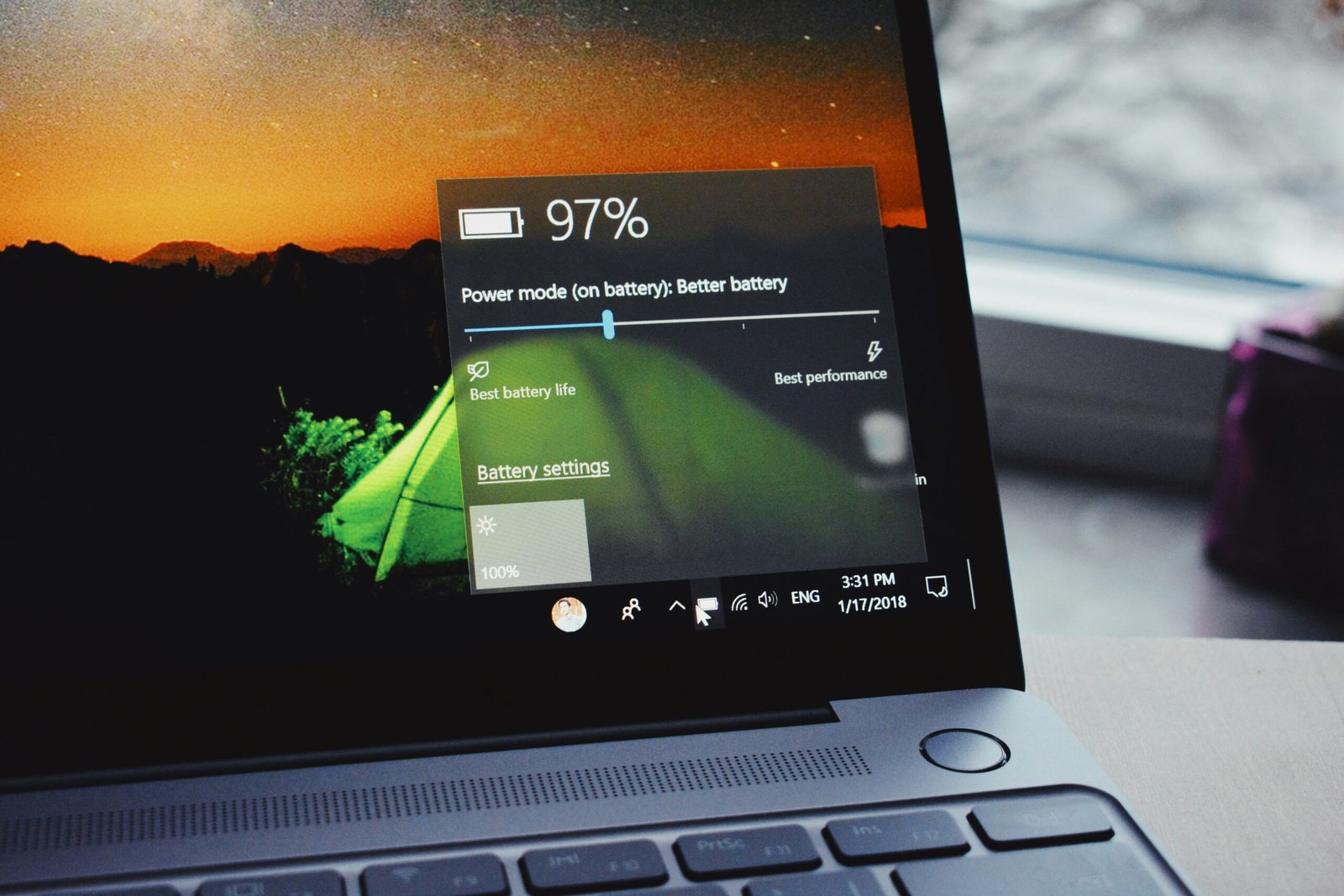
Open Settings > System > Power & battery. Under Power mode, choose Best performance if you are plugged in and want maximum speed. On laptops, the battery-saving modes reduce performance to conserve power, so switch modes depending on your needs.
10. Scan for Malware
Unwanted software can quietly use resources and slow everything down. Open Windows Security > Virus & threat protection and run a Quick scan, then a Full scan if the PC remains slow. Microsoft Defender’s Offline scan can detect some stubborn threats. Also review your browser extensions and remove any you do not recognize.
11. Update Drivers and Check for Problems
Outdated or faulty drivers, especially for graphics and chipset, can cause slowdowns and crashes. Use your computer manufacturer’s support site or update tool to find recommended drivers. If a problem started after a driver update, you can roll back in Device Manager by opening the device’s properties and selecting Roll Back Driver where available.
You can also run built-in repair tools. Open Terminal as administrator and use these commands one at a time:
sfc /scannowto check system files.DISM /Online /Cleanup-Image /RestoreHealthto repair the Windows image.
These tools can take a while, so let them finish.
12. Reset or Reinstall Windows if Nothing Else Works
If the system remains slow after careful cleanup, a reset can restore performance. Open Settings > System > Recovery and choose Reset this PC. You can keep your files, but apps will be removed. Back up important data first, and note your software licenses and login details.
A clean reinstall is a last resort, but for a machine cluttered over several years, it can make the system feel new again.
Bonus Tips
- Manage browser tabs and extensions. Browsers are often the heaviest apps on a modern PC.
- Keep your desktop tidy. Thousands of files on the desktop can slow loading slightly.
- Disable background apps you rarely use in each app’s advanced options.
- Clean dust from vents on desktops and laptops. Overheating forces the processor to slow down.
- Avoid “PC cleaner” and “speed booster” programs with aggressive marketing. Many are unnecessary and some are harmful.
A Quick Order of Operations
- Restart and update Windows.
- Disable heavy startup apps.
- Free up storage space.
- Check Task Manager for resource hogs.
- Scan for malware.
- Consider hardware upgrades such as an SSD or more RAM.
- Reset Windows only if needed.
Frequently Asked Questions
1. Why is my Windows 11 computer so slow?
Common causes include too many startup apps, a nearly full drive, low memory, outdated drivers, malware, or an old hard drive. Task Manager can help you identify which resource is under strain.
2. Does disabling startup apps harm my computer?
No, if you disable non-essential apps. It only stops them from launching automatically. Keep security software and critical drivers enabled.
3. Will adding more RAM make Windows 11 faster?
It can, if your system often runs out of memory when running many apps or browser tabs. If memory usage is low, other factors, such as storage speed, are more likely the problem.
4. Is it safe to use third-party speed-up software?
Generally, it is better to use built-in Windows tools. Many third-party optimizers make exaggerated claims, and some can change settings or install unwanted software.
5. Should I reset Windows 11 to improve speed?
Only after simpler fixes fail. A reset can solve deep software problems, but it removes apps and takes time. Back up your files before you begin.
Conclusion
Speeding up Windows 11 rarely requires expensive upgrades. Begin with restarts, updates, and cleaning startup programs, then free up disk space and check for resource-hungry apps. If your PC still struggles, hardware upgrades like an SSD or extra RAM can make a major difference. Revisit these steps every few months, and your computer should stay responsive for a long time.