Few questions divide PC users like this one: is Windows Defender enough, or do you need a paid antivirus? A few years ago, the usual answer was “no.” Today, the honest answer is more nuanced, and for many people it is “mostly yes, if you also build good habits.”
This guide explains what Windows Defender does, where it is strong, where it falls short, and who might benefit from extra protection. Security products change quickly, so check recent independent test results before making a final decision.
What Is Windows Defender?
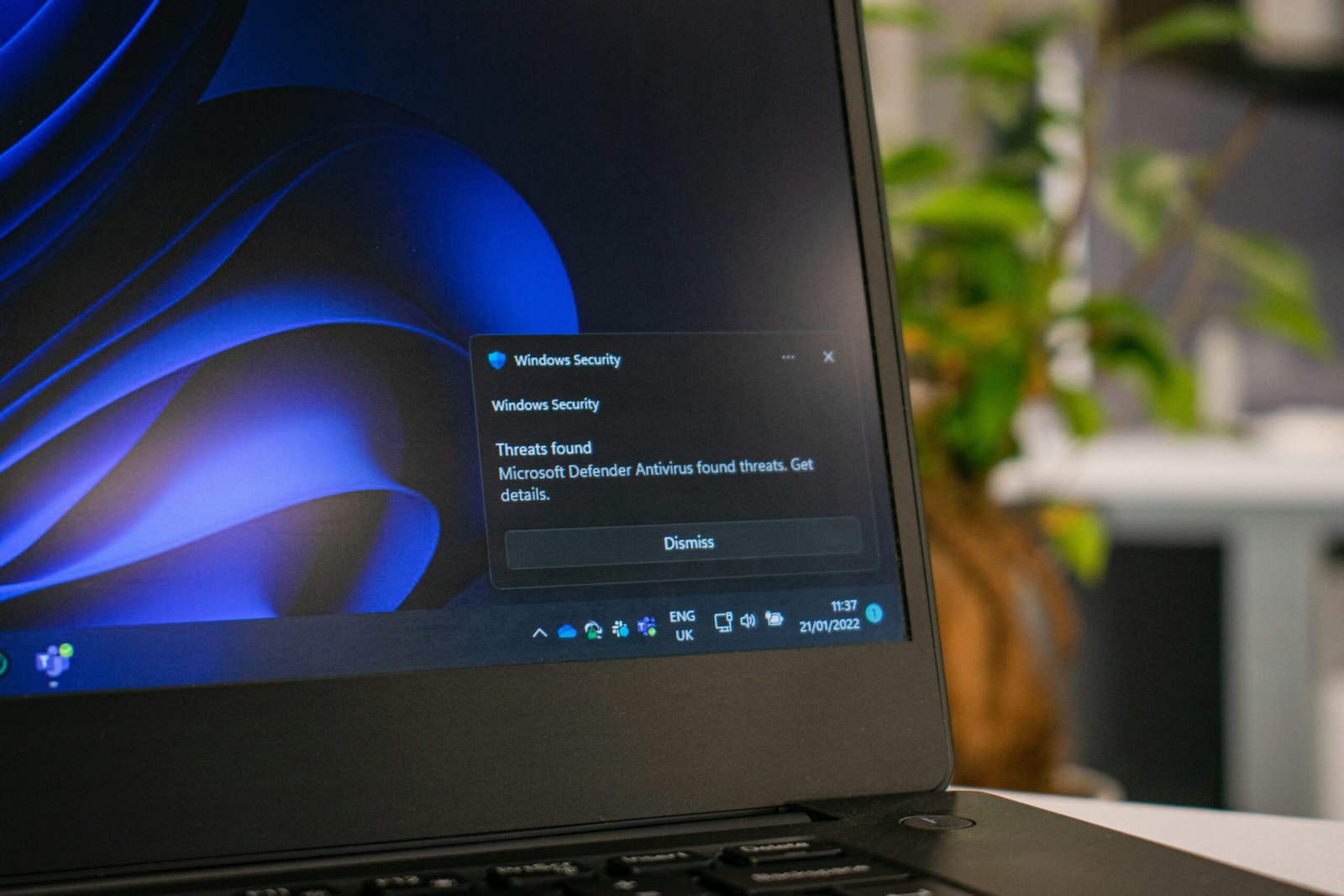
“Windows Defender” is the common name for the built-in security tools in Windows. The antivirus component is officially called Microsoft Defender Antivirus, and it is part of the Windows Security app in Windows 10 and Windows 11.
It includes real-time malware scanning, cloud-delivered protection, a firewall, ransomware-related controls such as Controlled Folder Access, and browser protection features like SmartScreen. It runs by default unless you install another antivirus, which usually replaces it.
Note that Microsoft also sells a separate consumer security subscription under the Microsoft Defender name, which adds features like identity monitoring on some plans. The built-in antivirus does not require a subscription.
How Good Is Windows Defender at Stopping Malware?
Independent testing labs such as AV-TEST and AV-Comparatives regularly evaluate antivirus products. In recent years, Microsoft Defender has generally scored well in malware detection tests, often competing with well-known paid products, though results vary by test round and category. Visit the labs’ websites to see current numbers, since scores change across testing periods.
That improvement happened because Microsoft invested heavily in cloud-based detection, behavior analysis, and machine learning. In practical terms, Defender handles common viruses, trojans, and many ransomware threats effectively.
Where Windows Defender Is Strong
- Cost: It is free and already installed.
- System integration: Because it is built into Windows, updates and compatibility are usually smooth.
- Low annoyance: There are few ads, pop-ups, or upsells compared with some third-party tools.
- Regular updates: Definitions update frequently through Windows Update.
- Core protections: Firewall, SmartScreen, and ransomware controls cover many everyday risks.
Where It Can Fall Short
Phishing and Scam Protection
Most modern attacks target people, not just software. Phishing emails, fake websites, and fraudulent messages can trick you into giving away passwords. Defender helps with SmartScreen warnings in Microsoft Edge, but protection can be weaker if you use other browsers without the right extensions. Some third-party suites include stronger web and email filtering.
Extra Features
Many paid suites bundle a password manager, VPN, identity monitoring, parental controls, and device optimization. Defender includes some basic family safety tools through Microsoft accounts, but not the full package of extras.
Cross-Platform Coverage
If you want one product that protects Windows, Mac, Android, and iOS devices, a paid suite may be more convenient. Microsoft offers Defender apps for other platforms in some subscription plans, but coverage and features differ.
Management for Multiple Devices
Families or small businesses may want a central dashboard to manage many devices. Third-party suites and business-grade Microsoft products offer this, while the free built-in tool is aimed at individual PCs.
Who Is Windows Defender Enough For?
Defender is likely sufficient if you:
- Keep Windows and apps updated.
- Download software only from trusted sources.
- Use a password manager and two-factor authentication.
- Recognize phishing attempts and avoid suspicious attachments.
- Back up important files regularly.
For these users, adding a second antivirus offers limited benefit and may slow your computer.
Who Might Need Extra Protection?
Consider additional tools if you:
- Handle sensitive client or financial data on a personal PC.
- Have children or older relatives who often click risky links.
- Frequently download files from unfamiliar sources.
- Want an all-in-one suite with identity monitoring, VPN, and parental controls.
- Manage several devices across different operating systems.
Even then, you do not necessarily need a full antivirus replacement. Targeted tools, such as a reputable password manager or an on-demand scanner, can fill the gaps.
Should You Run Two Antivirus Programs?
Generally, no. Running two real-time antivirus products can cause conflicts and slowdowns. Windows is designed to disable Defender’s real-time protection when another antivirus registers itself. An exception is using a second tool as an occasional on-demand scanner, which is generally safe because it does not monitor continuously.
Security Habits That Matter More Than Antivirus
Antivirus is one layer, not a complete shield. These habits often make the biggest difference:
- Install updates promptly for Windows, browsers, and apps. Note that Windows 10 reached its end of support in October 2025, so older systems running it should move to a supported version or follow Microsoft’s guidance on extended security updates.
- Use strong, unique passwords stored in a password manager.
- Turn on two-factor authentication for email, banking, and social media.
- Avoid pirated software, a common source of malware.
- Back up your files to an external drive and a cloud service.
- Be skeptical of urgent messages asking for money, codes, or logins.
- Use a standard account for daily tasks instead of an administrator account.
How to Check Your Defender Settings
- Open Windows Security from the Start menu.
- Go to Virus & threat protection and confirm real-time protection is on.
- Select Manage settings and enable cloud-delivered protection and automatic sample submission, if you are comfortable with that.
- Review Ransomware protection and consider enabling Controlled Folder Access for important folders. It may occasionally block legitimate apps, so test it.
- Run Windows Update to keep definitions current.
- Run a periodic full scan, especially if the device behaves strangely.
The Honest Verdict
For most home users in 2026, Microsoft Defender combined with safe habits provides a solid baseline. It is not perfect, and no antivirus is. The decision to buy more protection should depend on your risk level, your devices, and the extras you actually value, not on fear-based marketing.
Frequently Asked Questions
1. Is Windows Defender good enough for everyday users?
For many everyday users, yes. It offers strong built-in protection and performs well in many independent tests. Pair it with updates, careful browsing, and two-factor authentication.
2. Do I need to disable Windows Defender if I install another antivirus?
Usually not manually. Windows typically turns off Defender’s real-time protection when a compatible third-party antivirus is installed. You can switch back by removing that program.
3. Does Windows Defender protect against ransomware?
It includes protections such as Controlled Folder Access, and its detection helps block many ransomware threats. No tool guarantees complete protection, so keep offline or cloud backups.
4. Is paid antivirus better than Windows Defender?
Not always. Some paid suites offer extras like VPNs, identity monitoring, and parental controls, but core malware detection is competitive among many products. Compare recent lab results.
5. Can Windows Defender slow down my PC?
It can during scans, but most modern systems handle it well. Schedule full scans for times when you are not working, and keep your system updated.
Conclusion
Windows Defender has matured into a capable security tool that is sufficient for many users. Its real limits appear around phishing, multi-device management, and bundled extras. Focus on updates, strong passwords, backups, and cautious behavior first, and add third-party tools only when they solve a specific problem you actually have.