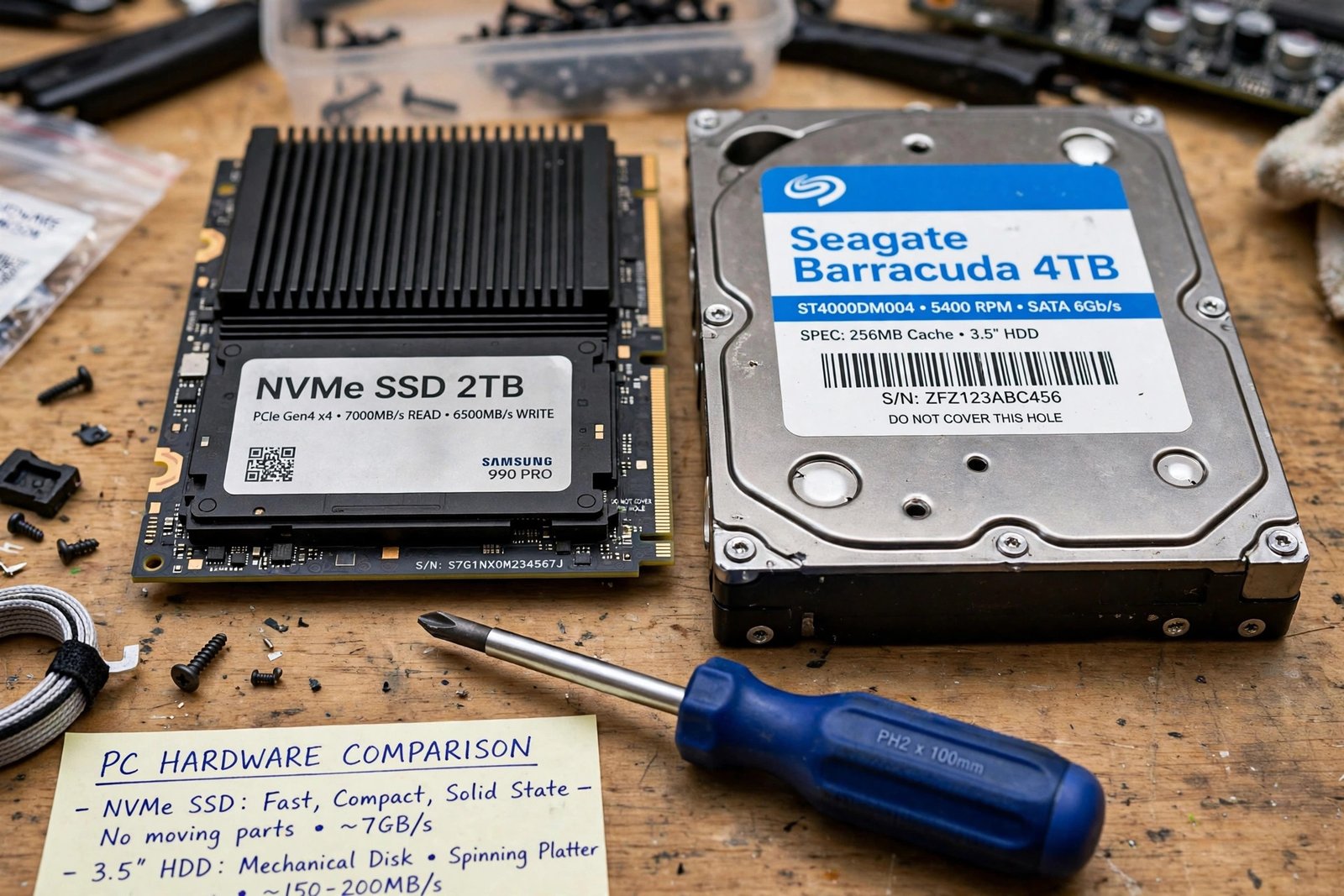
If you are buying a new laptop, upgrading an old PC, or building a computer in 2026, one question comes up before almost any other: SSD vs HDD — which storage drive should you buy? Both store your files, but they work in completely different ways, and the difference shows up every time you start your computer, open a program, or load a game. An SSD can make a five-year-old laptop feel new again, while an HDD still has a place when you need a lot of cheap space for files you rarely open.
This guide explains how SSDs and HDDs differ, compares speed, durability, capacity, noise and value, and gives clear recommendations for gaming, laptops, office work, photo storage and backups. No jargon, no invented prices — just the practical differences that matter when you spend your money.
What Is an SSD?
A solid-state drive (SSD) stores data on flash memory chips, with no moving parts. It reads and writes data electronically, which makes it very fast. When you click on a program, the SSD can find and deliver the data almost instantly, because there is no physical head that has to move to the right spot on a spinning disk.
Most SSDs in 2026 are either SATA SSDs, which use the same connection as older hard drives, or NVMe SSDs, which plug into a fast M.2 slot on the motherboard. NVMe drives are several times faster than SATA drives, and both are far faster than a traditional hard drive. For a new laptop or desktop, an NVMe SSD is the standard choice, and it is the single upgrade that makes the biggest difference to how fast a computer feels.
What Is an HDD?
A hard disk drive (HDD) stores data on spinning magnetic platters, read by a moving arm. It is older technology, and it is slower, but it is also well understood and inexpensive to make in large capacities. A 1 TB or 2 TB hard drive costs far less per terabyte than an SSD of the same size, which is why HDDs are still common in desktop PCs, external drives and network storage.
An HDD is a good fit for files you store and rarely change: a photo archive, a video library, or a backup copy of your documents. It is a poor fit as the main drive in a modern computer, because Windows, programs and games all have to wait for the spinning disk to catch up.
SSD vs HDD: Speed
Speed is where the SSD wins by a wide margin. A typical SATA SSD is several times faster than an HDD, and an NVMe SSD is faster still. In practice, that means Windows starts in seconds rather than a minute or more, programs open almost immediately, and large files copy in a fraction of the time.
For gaming, an SSD shortens loading screens and helps open-world games stream in new areas without stuttering. It will not magically raise your frame rate — that depends on your graphics card — but it removes the long waits that make a game feel slow. If you have ever watched a loading bar crawl on an old hard drive, you know the difference an SSD makes.
SSD vs HDD: Durability and Noise
Because an SSD has no moving parts, it handles bumps, drops and vibration far better than an HDD. That matters most in a laptop, which gets carried around, knocked and jostled every day. An HDD’s spinning platters and moving arm are more vulnerable to a knock while the drive is working, and a bad drop can damage it.
SSDs are also silent and use less power, which helps a laptop’s battery last a little longer. HDDs make a faint whirring or clicking sound, and they generate more heat. Neither drive lasts forever, so the durability advantage of an SSD is about surviving everyday knocks, not about never needing a backup.
SSD vs HDD: Capacity and Value
Capacity is the HDD’s strongest argument. Hard drives are available in very large sizes at a low cost per terabyte, so if you need several terabytes for video, photos or backups, an HDD gives you far more space for your money. SSDs have become much cheaper over the years, and a 500 GB or 1 TB SSD is now affordable for most buyers, but a multi-terabyte SSD is still a significant purchase.
The best value depends on how much space you actually need. For the drive that runs Windows and your programs, a 500 GB to 1 TB SSD is the sweet spot for most people in 2026. For bulk storage, a large HDD alongside it gives you the best of both worlds: speed where it matters, and cheap space where it does not.
How Long Do SSDs and HDDs Last?
Both types of drive can last many years with normal use. An SSD wears out gradually as data is written to it, but for a typical home user the drive is likely to be replaced for other reasons — a bigger drive, a new computer — long before it wears out. An HDD can fail suddenly if its moving parts wear out or it suffers a knock, which is why backups matter for both.
The honest rule is simple: no drive is a backup by itself. Whichever you choose, keep a second copy of anything important, whether that is an external drive, a second internal drive, or a cloud service. Before swapping a drive, back up your files first — a cloud service is a convenient safety net, as our guide to the best cloud storage explains.
Which Drive Should You Buy in 2026?
For a laptop or a main PC: SSD, every time
If a computer has only one drive, it should be an SSD. A laptop with an SSD starts faster, opens programs faster and feels more responsive in every task. If your current laptop still has an HDD, replacing it with an SSD is the most effective upgrade you can make, and it is often cheaper than buying a new laptop.
For gaming: SSD for games, HDD for extra storage
Install Windows and your most-played games on an SSD, and use an HDD for the rest of your library if you need the space. Many modern games are large, so a 1 TB SSD is a sensible minimum for a gaming PC, with an HDD as overflow storage if your budget allows.
For photos, video and backups: HDD, or both
If you store terabytes of photos or video, an HDD gives you the space you need at a reasonable cost. A photographer or video editor might use an SSD as a fast working drive for current projects and an HDD for the finished archive. For backups, an external HDD is a practical, affordable choice, as long as you also keep a second copy somewhere else.
For an office PC: SSD
Office work — email, documents, spreadsheets, video calls — benefits hugely from an SSD, because the computer spends less time waiting. A modest 500 GB SSD is usually plenty for office use, and it makes even a basic PC feel quick. If the computer also feels slow in other ways, our guide to 15 Windows 11 tips and tricks to speed up your PC can help with the software side.
How to Upgrade to an SSD
Upgrading is simpler than many people expect. First, check what your computer supports: most modern laptops and desktops have an M.2 slot for an NVMe SSD, while older machines use a 2.5-inch SATA bay. Buy a drive that fits, back up your files, and clone your old drive or do a fresh install of Windows. Cloning copies everything, including your programs and settings, while a fresh install gives you a clean start. If you are not comfortable opening your computer, a local repair shop can usually do the swap quickly and affordably.
Frequently Asked Questions
Is an SSD worth it in 2026?
Yes. An SSD is the single most noticeable upgrade for most computers. It makes starting up, opening programs and loading games far faster, and it is now affordable enough that there is little reason to use an HDD as your main drive.
Do SSDs last longer than HDDs?
For everyday use, an SSD is generally more durable because it has no moving parts to wear out or damage in a knock. Both types can fail, though, so back up important files regardless of which drive you use.
Can I use an SSD and an HDD together?
Yes, and it is often the best setup. Use an SSD for Windows, programs and games, and an HDD for large files, photos and backups. Many desktop PCs have room for both, and it gives you speed and capacity at a sensible cost.
How much storage do I need?
For most people, 500 GB to 1 TB is enough for Windows, programs and a reasonable set of files and games. If you store a lot of photos, video or games, go for 1 TB or more on the SSD, or add an HDD for bulk storage.
The SSD vs HDD question in 2026 has a clear answer for most buyers: choose an SSD for the drive that runs your computer, and add an HDD only when you need a lot of cheap space. The speed, silence and durability of an SSD change how a computer feels every day, while an HDD remains a sensible, affordable way to store large amounts of data you do not need in a hurry. Buy the SSD first, back up your files, and let the hard drive do the job it is still good at — holding a lot, for less.