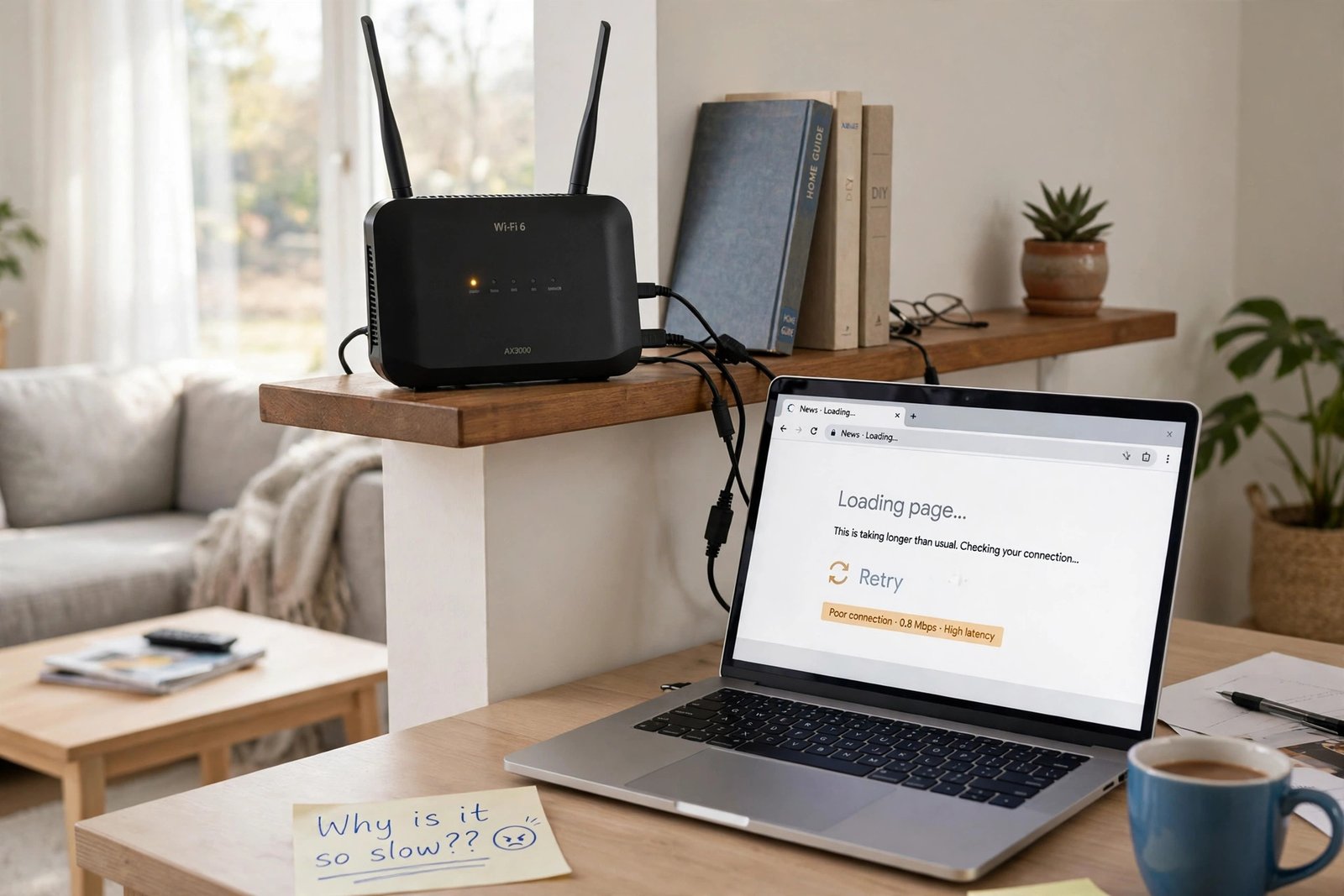
Nothing is more frustrating than a video that keeps buffering, a call that freezes mid-sentence, or a page that takes forever to load — especially when you are paying for a fast connection. If you keep asking yourself, why is my Wi-Fi so slow, the good news is that the cause is usually simple, and the fix is often free. Slow Wi-Fi is rarely just one thing: it can be your router’s position, a crowded channel, an old device, too many gadgets sharing the connection, or a problem with your internet provider.
This guide walks through 12 fixes that actually work, in the order you should try them. Start with the quick wins, which take a minute or two, then move to the deeper checks if the problem persists. You do not need to be technical, and you do not need to buy new equipment to see a real improvement in most cases.
First, Find Out Where the Problem Is
Before changing anything, run a quick speed test on your phone or laptop, standing close to the router, then again in the room where the connection feels slow. If the speed is good near the router but poor elsewhere, the problem is coverage. If it is slow everywhere, even next to the router, the problem may be your internet plan, your provider, or the router itself. Also try a wired connection if you can: if a cable gives you full speed while Wi-Fi is slow, you know the Wi-Fi signal is the bottleneck, not your broadband.
Check the time of day, too. If your Wi-Fi is slow every evening but fine in the morning, your neighbours may be using the same channels, or your household may simply have more devices streaming at once. Knowing the pattern saves you from fixing the wrong thing.
Why Is My Wi-Fi So Slow? 12 Fixes That Actually Work
1. Restart your router and modem properly
Turn off your router and modem, unplug them, wait 30 seconds, then plug the modem back in first and the router after it has fully started. This clears temporary glitches, frees memory, and forces the router to pick a fresh connection to your provider. It sounds too simple, but it fixes a surprising number of slowdowns, especially if the router has been running for weeks without a restart.
2. Move your router to a better spot
Wi-Fi signals weaken through walls, floors and metal. Put your router in a central, open spot in your home, at about waist to chest height, away from thick walls, mirrors, fish tanks and large metal appliances. Avoid hiding it inside a cabinet or behind the TV. A router on a shelf in the middle of the house will reach far more rooms than one tucked in a corner on the floor.
3. Check what is using your bandwidth
Cloud backups, game downloads, video calls and 4K streaming can all eat your bandwidth at once. Pause large downloads and cloud photo uploads while you work, and check whether a device is updating in the background. If your connection is fine when only one device is active, you have a congestion problem, not a broken router.
4. Switch to the right band: 2.4 GHz or 5 GHz
Most modern routers offer two bands. The 5 GHz band is faster but has a shorter range, while 2.4 GHz is slower but reaches further through walls. Use 5 GHz in the same room as the router for video calls and streaming, and 2.4 GHz in distant rooms where 5 GHz drops out. Many routers combine both under one network name and switch automatically, but splitting them can give you more control.
5. Change your Wi-Fi channel
In flats and busy neighbourhoods, dozens of routers compete on the same channels, which slows everyone down. Log in to your router’s settings and try a less crowded channel — for 2.4 GHz, channels 1, 6 and 11 are the usual choices because they do not overlap. Some routers have an auto-channel setting that does this for you, but a manual change is worth trying if your speed is consistently poor in the evening.
6. Update your router’s firmware
Router makers release firmware updates that fix bugs, improve stability and sometimes improve speed. Check your router’s admin page or app for updates, and install them when available. While you are there, make sure your devices are also up to date: an old Wi-Fi driver on a laptop can be the real reason one device is slow while everything else is fine. If your PC itself feels sluggish as well, our guide to 15 Windows 11 tips and tricks to speed up your PC covers the software side of the problem.
7. Secure your network
An open or weakly protected network can be used by neighbours, which slows you down and puts your data at risk. Make sure your Wi-Fi uses WPA2 or WPA3 encryption and a strong password that you do not share widely. Check the list of connected devices in your router’s app and remove anything you do not recognise. If you are unsure about the basics, our guide on how to protect your online accounts explains the security habits that matter most.
8. Move closer, or use a wired connection for important work
For video calls, gaming and large uploads, a wired Ethernet connection is faster and far more stable than Wi-Fi. If your desk is near the router, run a cable. If it is not, a powerline adapter or a mesh system can help, but a simple cable is the cheapest fix for the one device that matters most.
9. Reduce interference from other devices
Microwaves, baby monitors, cordless phones and Bluetooth devices can interfere with Wi-Fi, especially on the 2.4 GHz band. Keep your router away from the microwave and other electronics, and try switching to 5 GHz if interference is a problem. Even a few metres of distance can make a noticeable difference.
10. Limit the number of connected devices
Smart TVs, speakers, cameras, phones, tablets and laptops all share the same connection. A smart home with dozens of gadgets can quietly overload an older router. Disconnect devices you no longer use, turn off Wi-Fi on gadgets that do not need it, and consider whether your router is rated for the number of devices in your home. If it is several years old, it may simply not be built for a modern, connected household.
11. Try a mesh system or a Wi-Fi extender — in the right place
If one room is always a dead zone, an extender or a mesh Wi-Fi system can help, but placement matters. Put the extender halfway between the router and the dead zone, where it still gets a strong signal, not inside the dead zone itself. A mesh system with two or three units is usually better than a single extender, because it creates one seamless network instead of a weaker second network.
12. Check with your internet provider
If every fix fails and a wired speed test is also slow, the problem may be outside your home. Check your provider’s status page for outages, test your speed at different times of day, and ask whether your plan’s speed matches what you are paying for. If your plan is genuinely too slow for your household — for example, a basic plan shared by four people streaming in 4K — an upgrade may be the honest answer. Before you pay more, though, ask the provider to check the line and the modem, because a faulty cable or an old modem can look exactly like a slow plan.
When to Replace Your Router
Most routers last five to seven years, but a router that only supports older Wi-Fi standards, has no 5 GHz band, or cannot handle more than a handful of devices is holding you back. Replace it if it overheats, needs restarting every day, or cannot deliver the speed your plan provides even over a cable. When you buy a replacement, choose one that matches your home’s size and your internet speed, not the most expensive model on the shelf.
Frequently Asked Questions
Why is my Wi-Fi slow on one device only?
If one device is slow while others are fast, the problem is usually that device: an old Wi-Fi adapter, outdated drivers, a VPN running in the background, or a setting that limits its speed. Update its software, forget and rejoin the network, and test it next to the router.
Why is my Wi-Fi slow at night?
Evening slowdowns are often caused by neighbours using the same channels, more people at home streaming, or your provider’s network being busy at peak times. Try a different channel, use 5 GHz, and run a speed test at several times of day to confirm the pattern.
Does a VPN slow down Wi-Fi?
Yes, a VPN can slow your connection because your traffic travels further and is encrypted. The effect is usually small with a good VPN, but a free or overloaded VPN server can cut your speed dramatically. Test your speed with the VPN on and off to see the difference.
How fast should my Wi-Fi be?
It depends on your plan and your needs. A household that streams in HD, works from home and makes video calls will usually want at least 100 Mbps, while 4K streaming and several people online at once benefit from faster plans. Compare your speed test result with the speed your provider promises, using a wired connection for the fairest test.
Slow Wi-Fi is annoying, but it is usually fixable without spending money. Start with a restart and a better router position, check what is using your bandwidth, and use the right band for each room. Work through the list one fix at a time, test your speed after each change, and you will usually find the culprit within half an hour. If nothing helps and a wired test is slow too, talk to your provider — the problem may be on their side of the line.