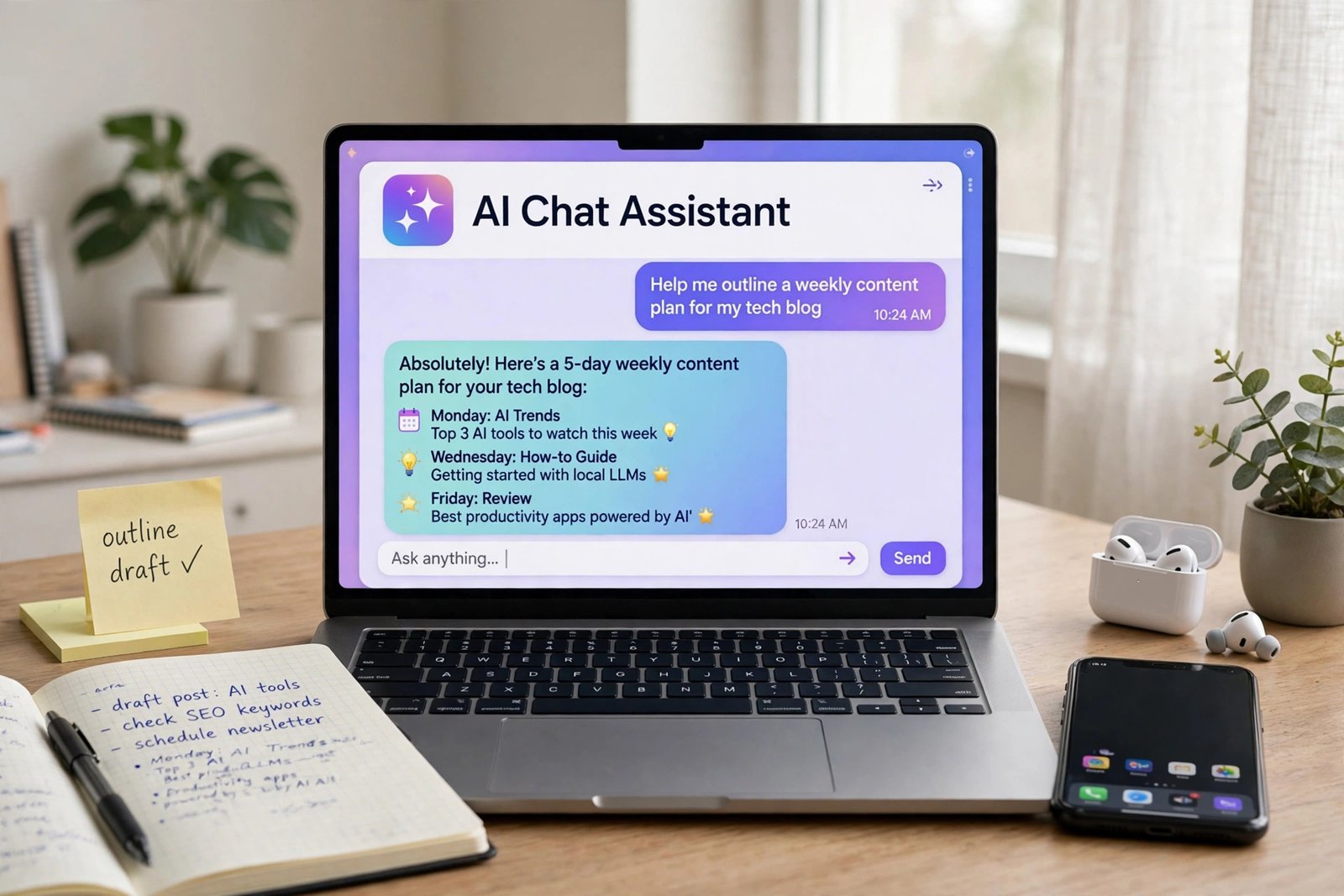
Artificial intelligence no longer belongs only to engineers and large companies. In 2026, the best free AI tools can help a beginner write a first draft, design a poster, organise study notes, answer a question, or turn a rough idea into a finished project. The catch is that “free” means different things on different services. Some tools offer a generous free tier with daily limits, some give a trial, and some keep their best features behind a paid plan. This guide focuses on tools you can genuinely start using without paying, and explains honestly what each free tier includes, where it stops, and who it suits best.
If you are new to AI, start with one tool for writing and one for images or design. Learn to give clear instructions, check the results, and keep private information out of your prompts. You do not need ten subscriptions, and you do not need the most powerful model to get useful help. The best free AI tools for beginners are the ones that are easy to open, easy to understand, and useful for a real task you already have.
What “Free” Really Means in 2026
A free tier usually gives you a set number of messages, images, or minutes each day or month. A free trial gives you full access for a short time, then asks you to pay. A freemium plan gives you basic features for free and charges for faster responses, larger files, or commercial use. The limits matter: a tool that allows only a few image generations a day may still suit a school project but frustrate a busy freelancer. Also check whether you can download and keep your work, and whether the free plan adds a watermark. Free tiers change, so check the current limits on the tool’s own website before planning a large project around them.
1. ChatGPT (Free Tier)
ChatGPT is the most useful starting point for most beginners because it handles many everyday tasks in one place: drafting emails, summarising articles, explaining difficult ideas, brainstorming titles, and helping with basic coding or maths. The free tier gives you a capable model with a limited number of messages over a set period, after which you may need to wait or switch to a lighter model. It is best for writing, learning, and planning, but it can make mistakes on recent news or detailed figures. Treat its answers as a strong first draft, not a final source.
2. Claude (Free Tier)
Claude is a strong choice if you like careful, well-structured writing. It is particularly good at long documents, summaries, and editing: paste a long article or a set of notes and ask it to summarise the main points, suggest a clearer structure, or rewrite a paragraph in a simpler style. The free tier allows a limited number of messages, and the limit can feel tight on a long project. Beginners often use it as a patient editor, asking it to point out unclear sentences or suggest shorter alternatives. Like other chat tools, it can be wrong, so use it to improve your own thinking.
3. Google Gemini (Free Tier)
Google Gemini is a good option if you already use Google services. The free tier lets you ask questions, draft text, brainstorm ideas, and get help with everyday tasks, and it can work alongside Google Search and Docs in some setups. It is convenient for quick research, planning, drafting a message, or understanding a topic before you write about it. The free tier is genuinely usable for daily questions, although heavier use and some advanced features may require a paid plan. As with any AI assistant, check dates and facts that change often, because an AI answer can be out of date.
4. Microsoft Copilot (Free)
Microsoft Copilot is built into Windows, Edge, and Microsoft 365 apps in many setups, which makes it easy to reach without opening a new website. The free version can answer questions, draft text, summarise web pages, and help with simple images. If you use a Windows PC every day, Copilot can help with quick tasks such as rewriting an email, explaining an error message, or planning a to-do list. The free version has usage limits and does not include every feature in the paid Microsoft 365 Copilot plans, so it is best for short, everyday jobs rather than long, complex projects.
5. Perplexity (Free Tier)
Perplexity is built around search. Ask a question and it gives you an answer with sources you can click and check, which makes it useful for research, homework, and learning about a new topic. The free tier includes a limited number of advanced searches each day, with basic searches available more freely. It suits beginners who want to learn how to verify AI answers: use it to gather sources, then read the original pages for anything important. Its limitation is the same as any search tool: the answer depends on the sources it finds, and it is not a substitute for reading a full article or an official guide.
6. Canva (Free Plan)
Canva is the easiest free design tool for beginners. Its free plan includes templates for social media posts, presentations, posters, and resumes, plus some AI features under its Magic Studio tools, such as help writing text, removing a background, or resizing a design. You can start with a template, change the words and colours, and download your design without learning professional design software. The honest limitation is that many premium templates, photos, and AI features are paid. The free plan still gives you enough to make clean, professional-looking designs for school, a small business, or a personal project. Learn more about how we review tools on our About Us page.
7. Notion (Free Plan)
Notion is a notes and organisation app that many beginners use to keep AI-assisted work in one place: class notes, project plans, reading lists, and to-do lists. The free plan is generous for personal use and works well on a phone and a computer. Here is the honest part: Notion AI is not a fully free feature. The free plan is for organising notes, while the AI writing features are generally part of a paid plan or a limited trial. If you want AI help without paying, draft with a free chat assistant such as ChatGPT or Gemini, then paste the finished text into Notion to organise it. That gives you free AI writing and free organisation without paying for either.
8. Microsoft Designer (Free)
Microsoft Designer is a simple way to create images and social media graphics from a short text description. Type what you want, such as “a bright poster for a school science fair with planets,” and it generates design ideas you can edit. The free version gives you a set number of boosts, which are used when you generate images. It is best for quick graphics, invitations, and social posts when you do not have a photo of your own. Its limitation is that AI images can look strange, especially hands and text in images, so check every image closely before you publish it.
9. Google NotebookLM (Free)
NotebookLM is a research tool that works from your own sources. You upload or link documents, notes, or web pages, then ask questions about them. It can summarise your sources, answer questions based only on those sources, and create a study guide or an audio overview that explains your material in a conversational way. For students, that is a genuinely useful difference: the answers stay grounded in the material you provided. The free version is usable for personal study and small research projects, although it has limits on notebooks and sources. Always check its summaries against your original sources.
10. Grammarly (Free Plan)
Grammarly’s free plan checks spelling, grammar, and punctuation as you type in a browser, in documents, or in email. It underlines mistakes, suggests corrections, and explains some of them, which helps you learn as you write. For beginners writing in English as a second language, or for anyone who wants cleaner emails and assignments, that instant feedback is valuable. The free plan does not include the full AI writing, tone, and clarity suggestions in the paid version, but the free checks cover the most common mistakes. Use it as a safety net, not as a replacement for reading your work aloud once before you send it.
A Simple Free Workflow for Beginners
You do not need to use all ten tools. A simple workflow is enough: use Perplexity or NotebookLM to research a topic, use ChatGPT, Claude, or Gemini to plan and draft, use Grammarly to clean up the draft, use Canva or Microsoft Designer for a visual, and use Notion to store the finished work. Keep a short list of prompts that work for you, such as asking for a summary in plain language or a step-by-step plan. For more about how this site is run, see our Privacy Policy.
Staying Safe With Free AI Tools
Free tools still collect data, so read the privacy basics before you sign up. Do not paste passwords, bank details, medical records, or other people’s private information into any AI tool. Be careful with tools that ask for broad access to your files or contacts, and use a strong, unique password for each account. Remember that AI can sound confident while being wrong: check dates, names, and statistics for anything important, especially health, money, legal, or safety advice.
Frequently Asked Questions
Are free AI tools really free?
Many are, within limits. A free tier usually gives you a set number of messages, images, or minutes, while advanced features, faster access, or higher limits cost money. Read the free plan details on the tool’s own website before you rely on it for a large project.
Which free AI tool should a complete beginner try first?
Start with ChatGPT, Google Gemini, or Microsoft Copilot. They are easy to use, cover writing and general questions, and do not require special skills. Add Canva when you need a design and NotebookLM when you need to study from your own notes.
Can I use free AI tools for school or work?
Yes, for drafting, brainstorming, summarising, and learning, but follow your school or workplace rules. Some teachers and employers limit AI use or require you to disclose it. Always check your own work, cite real sources where needed, and do not submit AI text as your own without checking the rules.
Free AI tools are at their best when they save you time on routine work and help you learn faster. Choose one tool, use it for a real task this week, and judge it by whether the result is actually better than doing the task without it. The tools in this guide will get you started without spending anything, and as your needs grow, you will know exactly which paid feature, if any, is worth paying for.

One thought on “10 Best Free AI Tools for Beginners in 2026”